 JustLearn
Lesson 2: Setting Up Your AI Toolkit
Course: AI-Powered Development (Dev Track) | Duration: 2 hours | Level: Beginner
Learning Objectives
By the end of this lesson, you will be able to:
- Install, configure, and authenticate Cursor IDE, Claude Code CLI, and GitHub Copilot
- Write effective AI configuration files (
.cursorrules,CLAUDE.md,.github/copilot-instructions.md) - Select the right model for the right task in each tool
- Verify each tool is working correctly with hands-on tests
- Understand the trade-offs and best use cases for each tool
Prerequisites
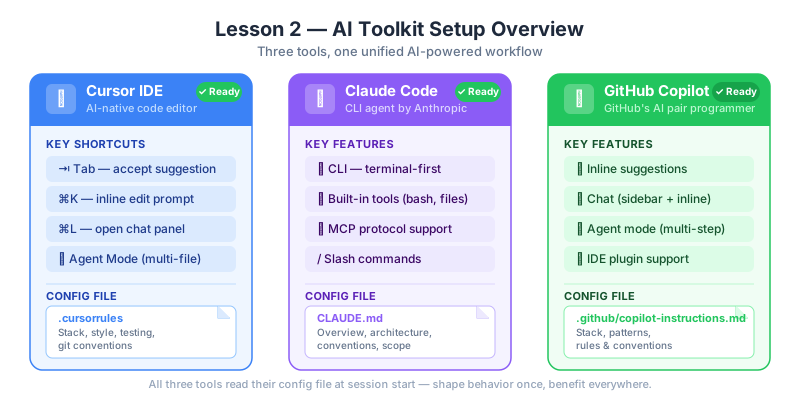
- A computer running macOS, Windows, or Linux
- A GitHub account (free tier is fine)
- Basic familiarity with a terminal / command line
- Node.js 18 or higher installed (
node --versionto verify) - An Anthropic account (for Claude Code) — sign up at console.anthropic.com
- A Cursor account (free tier available) — sign up at cursor.com
Lesson Outline
Part 1: Cursor IDE Setup (30 min)
Explanation
Cursor is a fork of VS Code that ships with deep AI integration at every layer of the editor. Unlike Copilot (which is an extension bolted onto VS Code), Cursor's AI features are baked into the editing experience:
| Feature | Shortcut | What it does |
|---|---|---|
| Tab Completion | Tab | Accepts multi-line AI suggestions inline |
| Inline Edit | Cmd+K (Mac) / Ctrl+K (Win) | Edit or generate code in-place with a prompt |
| Chat Sidebar | Cmd+L (Mac) / Ctrl+L (Win) | Conversational AI with codebase context |
| Agent Mode | via Chat | AI autonomously reads/writes/runs files |
| Codebase Index | automatic | Cursor indexes your entire project for semantic search |
Agent Mode is Cursor's most powerful feature. In Agent Mode, Claude (or GPT-4o) can read files, edit files, run terminal commands, and iterate — all without you shepherding each step. This is what separates "autocomplete on steroids" from a true development agent.
Step-by-Step Installation
Step 1: Download Cursor
Go to https://cursor.com and click "Download for Free." The installer is available for:
- macOS (Apple Silicon and Intel)
- Windows (
.exeinstaller) - Linux (
.AppImageor.deb)
Step 2: Install
macOS:
# After downloading the .dmg
open ~/Downloads/Cursor-*.dmg
# Drag Cursor.app to Applications
# Open Cursor from Applications or Spotlight
Windows:
1. Run CursorSetup-*.exe
2. Follow the installer wizard
3. Launch Cursor from the Start Menu
Linux (Debian/Ubuntu):
sudo dpkg -i cursor-*.deb
# or for AppImage:
chmod +x cursor-*.AppImage
./cursor-*.AppImage
Step 3: Sign In
On first launch, Cursor will show a sign-in screen. Click "Sign In" and authenticate with GitHub, Google, or email. Your free tier includes 2,000 completions/month and limited premium model usage.
Expected terminal output after launching:
Cursor 0.45.x
Starting AI indexing of workspace...
Indexed 143 files in 4.2s
Step 4: Enable Agent Mode
- Open the Chat panel with
Cmd+L - At the top of the chat, click the dropdown that says "Normal" or "Ask"
- Select "Agent" from the dropdown
- You will see a confirmation: "Agent mode enabled — Cursor can now read and edit files"
Step 5: Configure Your Model
In the top-right of the Chat panel, click the model selector. Recommended choices:
| Task | Recommended Model | Reason |
|---|---|---|
| Day-to-day coding | claude-sonnet-4-5 | Fast, cost-effective, strong at code |
| Complex refactors | claude-opus-4 | Deeper reasoning, handles large diffs |
| Quick completions | gpt-4o-mini | Lowest latency for Tab completions |
| Architecture planning | claude-opus-4 | Best at long-context reasoning |
Note on model naming: Cursor uses Anthropic's API directly. Model names like claude-sonnet-4-5 map directly to Anthropic's API identifiers. You can check current available models in Cursor's Settings > Models.
Configuring .cursorrules
.cursorrules is a plain text file you place in the root of your project. Cursor automatically reads it and prepends it to every AI interaction in that workspace. Think of it as a persistent system prompt for your project.
Create the file:
touch .cursorrulesFull example for a React/Node.js project:
# .cursorrules — React/Node.js Project

## Project Overview
This is a full-stack web application built with React (frontend) and Node.js/Express (backend).
The frontend lives in /client, the backend in /server.

## Tech Stack
- Frontend: React 18, TypeScript, Tailwind CSS, React Query, React Router v6
- Backend: Node.js 20, Express 4, Prisma ORM, PostgreSQL
- Testing: Vitest (frontend), Jest (backend), Playwright (e2e)
- Build: Vite (frontend), tsc (backend)
- Package manager: pnpm

## Code Style & Conventions
- TypeScript strict mode is enabled. Never use `any`; use `unknown` with type guards.
- React components: use functional components with hooks. No class components.
- File naming: PascalCase for components (Button.tsx), camelCase for utilities (formatDate.ts).
- CSS: Tailwind utility classes only. No raw CSS files unless absolutely necessary.
- API routes follow REST conventions: GET /api/users, POST /api/users, etc.
- All async functions must handle errors with try/catch or .catch(). Never leave promises unhandled.
- Prefer named exports over default exports, except for page-level components.

## Directory Structure
client/
  src/
    components/   # Reusable UI components
    pages/        # Route-level page components
    hooks/        # Custom React hooks
    lib/          # Utility functions
    types/        # Shared TypeScript types
server/
  src/
    routes/       # Express route handlers
    services/     # Business logic
    middleware/   # Express middleware
    prisma/       # Prisma schema and migrations

## AI Behavior Instructions
- When writing new code, always include TypeScript types. Do not use implicit `any`.
- When creating a new React component, create a co-located `.test.tsx` file using Vitest.
- When editing backend routes, preserve existing middleware ordering.
- When asked to "refactor", prefer small, incremental changes over full rewrites.
- Always check if a utility function already exists in /client/src/lib before creating a new one.
- When generating Prisma migrations, output both the migration SQL and the updated schema.

## What NOT to do
- Do not install new npm packages without explicitly asking me first.
- Do not modify prisma/schema.prisma without explaining the migration impact.
- Do not change environment variable names — check .env.example first.
- Do not write console.log statements in production code; use the logger utility in server/src/lib/logger.ts.
- Do not use dynamic code execution patterns (Function constructor, script injection).
First Test: Cmd+K on a File
- Open any JavaScript or TypeScript file in your project
- Click anywhere in the file to position your cursor
- Press
Cmd+K(Mac) orCtrl+K(Win) - In the prompt box, type:
Explain what this file does in 3 bullet points - Press
Enter
You should see Cursor insert an explanation comment at your cursor position. If it does, your setup is working.
Verifying Agent Mode works:
- Open chat with
Cmd+L - Switch to Agent mode
- Type:
List all the files in this project and summarize what each one does
Expected output: A structured list of your project files with one-line descriptions. Cursor will show "Reading file: ..." indicators as it scans.
Part 2: Claude Code CLI Setup (30 min)
Explanation
Claude Code is Anthropic's official command-line interface for running Claude as an agentic coding assistant directly in your terminal. Unlike Cursor (a GUI editor), Claude Code is terminal-native — it lives in your shell, can run arbitrary commands, and integrates directly into your existing workflow without requiring you to switch editors.
Key strengths of Claude Code:
- Works with any editor (Vim, Emacs, Neovim, VS Code)
- Can be composed with shell scripts and CI pipelines
- Supports long autonomous runs (hours-long tasks)
- Reads
CLAUDE.mdto understand your project context
Prerequisites
# Verify Node.js version (must be 18+)
node --version
# Expected: v18.x.x or higher

# Verify npm is available
npm --version
# Expected: 9.x.x or higher
If you need to install Node.js, use nvm:
curl -o- https://raw.githubusercontent.com/nvm-sh/nvm/v0.39.7/install.sh | bash
nvm install 20
nvm use 20
Installation
npm install -g @anthropic-ai/claude-codeExpected output:
added 47 packages in 8s
found 0 vulnerabilities

+ @anthropic-ai/claude-code@1.x.x
Verify installation:
claude --version
# Expected: claude-code/1.x.x
First Run and Authentication
# Navigate to your project directory
cd /path/to/your/project

# Start Claude Code
claude
On first run, Claude Code will prompt you to authenticate:
Welcome to Claude Code!

To get started, you'll need to authenticate.
Opening browser for authentication...

? How would you like to authenticate?
  > Login with Anthropic (browser)
    Enter API key manually
Select "Login with Anthropic" — your browser will open to console.anthropic.com. After approving, you'll see:
Authentication successful!
Claude Code is ready.

Type /help for available commands or just describe what you want to do.

>
If you prefer API key authentication:
# Get your API key from console.anthropic.com/settings/api-keys
export ANTHROPIC_API_KEY="sk-ant-api03-..."

# Add to your shell profile for persistence
echo 'export ANTHROPIC_API_KEY="sk-ant-api03-..."' >> ~/.zshrc
source ~/.zshrc
Key Commands and CLI Interface
Once you see the > prompt, you are in Claude Code's interactive session. The interface has two modes:
Conversational mode: Type naturally, just like talking to Claude.
> What does the main function in server.js do?
> Add input validation to the /api/users POST route
> Run the test suite and fix any failing tests
Slash commands: Prefixed with / for control operations.
| Command | Description |
|---|---|
/help | Show all available commands |
/model | Switch the active model |
/compact | Compress conversation history to save tokens |
/clear | Start a fresh conversation (clears context) |
/cost | Show token usage and cost for this session |
/diff | Show all file changes made in this session |
/undo | Revert the last set of file changes |
/exit or Ctrl+C | Exit Claude Code |
Switching models mid-session:
> /model
? Select model:
  > claude-sonnet-4-5 (fast, recommended)
    claude-opus-4 (powerful, slower)
    claude-haiku-4 (fastest, cheapest)
Compacting context (important for long sessions):
> /compact
Compacting conversation... Done.
Reduced from 45,320 tokens to 8,200 tokens (81% reduction)
Use /compact when you've been working for a while and want to continue without hitting context limits. Claude will summarize what has been done and retain the key context.
Writing CLAUDE.md
CLAUDE.md is the most important configuration file for Claude Code. Place it in the root of your project (or in any subdirectory for sub-project context). Claude Code reads it automatically at the start of every session.
How Claude Code discovers CLAUDE.md:
- Reads
./CLAUDE.mdin the current working directory - Also reads
~/.claude/CLAUDE.mdfor global user preferences - Sub-directories can have their own
CLAUDE.mdfor scoped context
Full CLAUDE.md template:
# CLAUDE.md — Project Context for AI Assistance

## Project Overview
<!-- 2-3 sentences describing what this project does and who uses it -->
This is [project name], a [type of application] that [core purpose].
Built by [team/individual] for [users/customers].
Currently in [development stage: early dev / production / maintenance].

## Architecture

### Stack
- **Language:** [e.g., TypeScript 5.x]
- **Frontend:** [e.g., Next.js 14, React 18, Tailwind CSS]
- **Backend:** [e.g., Node.js 20, Express 4 / FastAPI / etc.]
- **Database:** [e.g., PostgreSQL via Prisma / MongoDB via Mongoose]
- **Auth:** [e.g., NextAuth.js / Auth0 / custom JWT]
- **Infra:** [e.g., Vercel (frontend), Railway (backend), S3 (storage)]
- **CI/CD:** [e.g., GitHub Actions]

### Key Directories
src/
  app/          # Next.js app router pages
  components/   # Shared React components
  lib/          # Utilities and helpers
  server/       # Server-side logic (API routes, db queries)
  types/        # TypeScript type definitions
prisma/         # Database schema and migrations
tests/          # Test files (mirrors src/ structure)

### Data Flow
User request -> Next.js API Route -> Service Layer -> Prisma -> PostgreSQL
Responses are cached with React Query on the frontend.

## Development Conventions

### Code Style
- TypeScript strict mode. Never use `any`.
- ESLint + Prettier configured. Run `pnpm lint` before committing.
- All React components are functional. No class components.
- Co-locate tests with source files: `Button.tsx` + `Button.test.tsx`.

### Naming Conventions
- Files: PascalCase for components, camelCase for utilities
- Database: snake_case for column names, PascalCase for model names
- API endpoints: kebab-case paths, e.g. `/api/user-profiles`
- Environment variables: SCREAMING_SNAKE_CASE, prefixed by scope (e.g. `DB_URL`, `AUTH_SECRET`)

### Git Workflow
- Branch naming: `feat/description`, `fix/description`, `chore/description`
- Commits: Conventional commits format (`feat:`, `fix:`, `refactor:`, etc.)
- Never commit directly to `main`. Open a PR.
- PRs require 1 review and passing CI.

### Testing Standards
- Unit tests: Vitest for pure functions, React Testing Library for components
- Integration tests: Supertest for API routes
- E2E tests: Playwright, located in `/e2e`
- Run all tests: `pnpm test`
- Coverage threshold: 80% for new code

## Current Task Scope
<!-- IMPORTANT: Update this section at the start of each working session -->
<!-- This tells Claude what you are currently focused on so it doesn't make changes outside scope -->

### Active Work
- [ ] Describe the current feature or bug you are working on
- [ ] List the specific files that are in scope for this session

### Out of Scope
- Do not modify authentication logic unless I explicitly ask
- Do not change the database schema without discussing the migration
- Do not add new dependencies without confirming with me first

### Known Issues / Context
- [List any relevant bugs, workarounds, or tech debt Claude should know about]
- [e.g., "The UserService has a known N+1 query issue — do not optimize it yet, tracked in #123"]

## Running the Project
pnpm install        # Install dependencies
pnpm dev            # Start development server
pnpm test           # Run all tests
pnpm lint           # Run ESLint
pnpm build          # Production build

## Environment Variables
<!-- List variable names (NOT values) so Claude knows what's available -->
DATABASE_URL=         # PostgreSQL connection string
AUTH_SECRET=          # NextAuth secret
NEXT_PUBLIC_API_URL=  # Public API base URL
STRIPE_SECRET_KEY=    # Payment processing (server only)
First Test: "List all functions in this project"
cd /path/to/your/project
claude

> List all the exported functions in the src/lib directory and describe what each one does
Expected output (abbreviated):
Reading directory: src/lib/...
Reading file: src/lib/formatDate.ts
Reading file: src/lib/validateEmail.ts
Reading file: src/lib/api.ts

Here are the exported functions in src/lib/:

**formatDate.ts**
- `formatDate(date: Date, format: string): string` — Formats a Date object to a
  human-readable string using the provided format pattern.
- `relativeTime(date: Date): string` — Returns a relative time string like "2 hours ago".

**validateEmail.ts**
- `isValidEmail(email: string): boolean` — Returns true if the string matches a
  valid email address pattern.

**api.ts**
- `fetchWithAuth(url: string, options?: RequestInit): Promise<Response>` — Wrapper
  around fetch that automatically attaches the auth token from localStorage.
If you see Claude reading files and returning structured output, your Claude Code setup is working correctly.
Part 3: GitHub Copilot Setup (20 min)
Explanation
GitHub Copilot is Microsoft/GitHub's AI coding assistant, now available as both an inline suggestion engine and an autonomous agent. It is particularly well-integrated with the GitHub ecosystem — issues, pull requests, and repositories.
Copilot features relevant to this course:
| Feature | Description |
|---|---|
| Inline suggestions | Classic autocomplete as you type |
| Copilot Chat | Conversational assistant in VS Code sidebar |
| Agent Mode | Autonomous multi-step task execution |
| Copilot Workspace | Web-based agent that works from GitHub Issues |
copilot-instructions.md | Project-level configuration file |
Step-by-Step Installation
Step 1: Verify your GitHub Copilot subscription
Copilot requires a paid plan or a verified student account:
- Individual: $10/month at github.com/features/copilot
- Business/Enterprise: $19-39/user/month
- Students: Free via GitHub Education at education.github.com
Step 2: Install the VS Code Extension
- Open VS Code
- Press
Cmd+Shift+X(Mac) orCtrl+Shift+X(Win) to open Extensions - Search for "GitHub Copilot"
- Install both:
- GitHub Copilot (the core extension, ID:
GitHub.copilot) - GitHub Copilot Chat (the chat panel, ID:
GitHub.copilot-chat)
- GitHub Copilot (the core extension, ID:
- Reload VS Code when prompted
Step 3: Sign in to GitHub
After installation, VS Code will show a notification: "Sign in to GitHub to use Copilot."
- Click "Sign in"
- A browser window opens to github.com/login
- Authorize the VS Code extension
- Return to VS Code — you should see "GitHub Copilot" in the status bar (bottom-right)
Terminal verification:
# Check Copilot is active — you should see the Copilot icon in VS Code's status bar
# The icon looks like the GitHub Copilot logo (stylized octopus head)
# If it's greyed out, your subscription may not be active
Step 4: Enable Agent Mode in Copilot
- Open the Copilot Chat panel:
Cmd+Shift+Ior click the chat icon in the Activity Bar - At the top of the chat input, click the "Ask Copilot" dropdown
- Select "Agent"
- You will see additional tool icons appear (file browser, terminal, etc.)
Note: Agent Mode in Copilot Chat requires VS Code 1.93+ and the Copilot Chat extension 0.22+. Update both if you don't see the option.
Configuring .github/copilot-instructions.md
This file gives GitHub Copilot persistent context about your project. It is read automatically for every Copilot interaction in the repository.
mkdir -p .github
touch .github/copilot-instructions.md
Full example:
# GitHub Copilot Instructions

## Project Context
This repository contains a SaaS billing platform built with React and Node.js.
It handles subscription management, invoicing, and Stripe payment integration.

## Technology Stack
- Frontend: React 18, TypeScript, Vite, Tailwind CSS
- Backend: Node.js 20, Express, Prisma, PostgreSQL
- Payments: Stripe SDK
- Testing: Vitest, Playwright
- Deployment: Docker, GitHub Actions, AWS ECS

## Coding Standards

### TypeScript
- Use strict TypeScript. Avoid `any` — use `unknown` with type narrowing.
- Prefer interfaces for object shapes, type aliases for unions and primitives.
- Export types from a central `types/` directory when shared across modules.

### React
- Functional components only. Use hooks.
- Custom hooks go in `src/hooks/`. Name them `useSomething`.
- Avoid prop drilling more than 2 levels. Use React Context or Zustand for state.
- All data fetching uses React Query (`useQuery`, `useMutation`).

### API Design
- RESTful endpoints: `GET /api/subscriptions`, `POST /api/subscriptions`, etc.
- All responses follow: `{ data: T, error: string | null, meta?: object }`
- Errors use HTTP status codes correctly (400 for validation, 401 for auth, 404 for not found, 500 for server errors).

### Security
- Never log sensitive data (API keys, passwords, card numbers).
- All user inputs must be validated with Zod schemas before processing.
- Stripe webhook signatures must always be verified.

## What Copilot Should Prioritize
- Write tests alongside new code — not as an afterthought.
- Prefer small, composable functions over large monolithic ones.
- When suggesting database queries, check for N+1 patterns and suggest eager loading if needed.
- When working with Stripe, always use the latest API version.

## What Copilot Should Avoid
- Do not suggest removing error handling.
- Do not suggest dynamic code execution patterns (script injection, unsafe constructors).
- Do not add `// TODO` comments without context on what needs to be done.
Copilot Workspace and Assigning Issues to Copilot Agent
Copilot Workspace (github.com/features/copilot/workspace) allows you to give Copilot a GitHub Issue and have it generate a full implementation plan and code changes.
To assign an issue to Copilot:
- Go to your GitHub repository
- Open an Issue (or create one with a clear description)
- In the issue's right sidebar, find "Assignees"
- Click the gear icon and select "Copilot" from the assignee list
GitHub Copilot will:
- Read the issue description
- Analyze the codebase
- Create a draft pull request with proposed changes
- Show a step-by-step plan of what it intends to do
First test: Assign a test issue
-
Create a new issue in your repository:
codeTitle: Add input validation to the user registration form Body: Currently, the registration form at /register accepts any input without validation. Please add: - Email format validation - Password minimum length of 8 characters - Password confirmation must match password - Display inline error messages below each field Files likely affected: - src/pages/Register.tsx - src/lib/validation.ts (create if it doesn't exist) -
Assign the issue to Copilot
-
Wait 2-3 minutes for Copilot to analyze and open a draft PR
-
Review the draft PR to see Copilot's proposed changes
Expected result: A draft pull request with changed files, a description of the changes made, and a checklist of what was implemented.
Part 4: Configuration Deep Dive (20 min)
Explanation
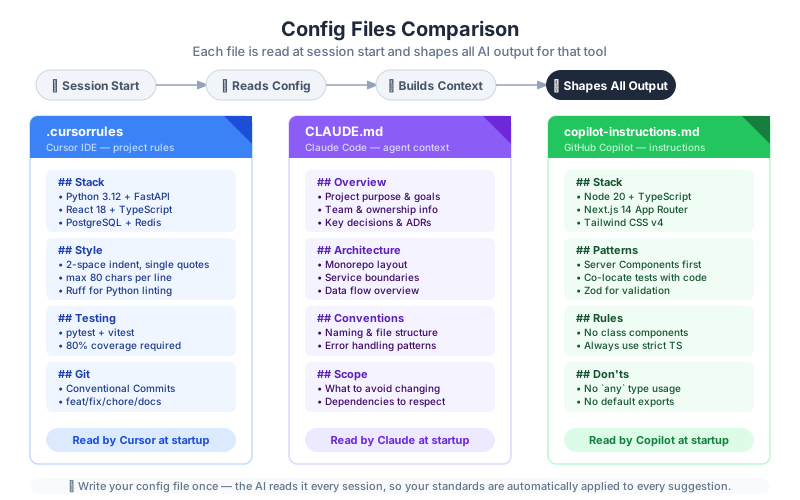
All three tools use configuration files to give the AI persistent context about your project. Understanding the differences — and writing good configuration — is one of the highest-leverage skills for AI-assisted development.
Comparison Table
| Property | .cursorrules | CLAUDE.md | .github/copilot-instructions.md |
|---|---|---|---|
| Tool | Cursor IDE | Claude Code CLI | GitHub Copilot |
| Location | Project root | Project root (or subdirs) | .github/ directory |
| Format | Plain text | Markdown | Markdown |
| When read | Every AI interaction | Start of each session | Every Copilot interaction |
| Scope | Per-workspace | Per-project (can be hierarchical) | Per-repository |
| Global config | ~/.cursor/rules | ~/.claude/CLAUDE.md | Not supported |
| Token impact | Prepended to every prompt | Prepended to session context | Prepended to every prompt |
| Version controlled | Yes | Yes | Yes |
Best Practices for Writing AI Configuration Files
1. Be specific, not vague
Bad:
Write good code.
Good:
When writing TypeScript, use strict mode. Never use `any`.
Prefer interfaces over type aliases for object shapes.
All async functions must have try/catch error handling.
2. Include negative instructions (what NOT to do)
The most valuable instructions are often constraints:
Do not install new npm packages without asking.
Do not modify the database schema without explaining the migration.
Do not change API response shapes without updating the TypeScript types.
3. Describe your directory structure
AI tools perform significantly better when they know where things live:
src/
  components/   # Reusable UI (Button, Modal, etc.)
  pages/        # Route-level pages
  hooks/        # Custom React hooks
  lib/          # Pure utility functions
  types/        # Shared TypeScript types
4. Update "Current Task" or "Current Scope" regularly
For CLAUDE.md specifically, add a section you update at the start of each session:
## Current Session Scope
Working on: User authentication flow
In-scope files: src/pages/Login.tsx, src/lib/auth.ts, server/routes/auth.js
Do NOT touch: payment integration, database migrations
5. Include your run commands
pnpm dev          # Start development server
pnpm test         # Run all tests
pnpm test:watch   # Run tests in watch mode
pnpm lint         # Run ESLint
pnpm build        # Production build
6. Keep it DRY across tools
If you use all three tools, maintain one canonical "project facts" section and copy it into each config file. The conventions and architecture description should be identical across .cursorrules, CLAUDE.md, and copilot-instructions.md.
Side-by-Side Copy-Paste Templates
.cursorrules — minimal starter:
# .cursorrules

## Project
[One sentence: what does this project do?]
Stack: [language, framework, database]

## Conventions
- [Key style rule 1]
- [Key style rule 2]
- [Key style rule 3]

## Directory Layout
[Paste your tree structure here]

## Rules
- Do not use `any` in TypeScript
- Always write a test for new functions
- [Your most important constraint]
CLAUDE.md — minimal starter:
# CLAUDE.md

## What This Project Is
[2-3 sentences]

## How to Run
pnpm install
pnpm run dev
pnpm test

## Key Files
- [File 1]: [what it does]
- [File 2]: [what it does]

## Current Focus
Working on: [current task]
Do not touch: [out-of-scope areas]

## Conventions
- [Style rule 1]
- [Style rule 2]
.github/copilot-instructions.md — minimal starter:
# Copilot Instructions

## Project
[One paragraph description]

## Stack
- Frontend: [frameworks]
- Backend: [frameworks]
- Database: [database]

## Standards
- [Key convention 1]
- [Key convention 2]
- [Key convention 3]

## Priorities
- Always write tests for new code
- Prefer small functions over large ones
- [Your top priority]
Part 5: Integration Testing (20 min)
Explanation
In this hands-on section, you will configure all three tools on the same sample project and run the same test task through each one. This lets you directly compare output quality, speed, and behavior.
Sample Project Setup
If you don't have a project handy, create a minimal test project:
mkdir ai-toolkit-test && cd ai-toolkit-test
npm init -y
npm install express
mkdir src
Create src/app.js:
const express = require('express');
const app = express();

app.use(express.json());

const users = [
  { id: 1, name: 'Alice', email: 'alice@example.com' },
  { id: 2, name: 'Bob', email: 'bob@example.com' },
];

app.get('/api/users', (req, res) => {
  res.json(users);
});

app.post('/api/users', (req, res) => {
  const { name, email } = req.body;
  const user = { id: users.length + 1, name, email };
  users.push(user);
  res.status(201).json(user);
});

app.get('/api/users/:id', (req, res) => {
  const user = users.find(u => u.id === parseInt(req.params.id));
  if (!user) return res.status(404).json({ error: 'User not found' });
  res.json(user);
});

module.exports = app;
Create src/index.js:
const app = require('./app');
app.listen(3000, () => console.log('Server running on port 3000'));
Test Task for All Three Tools
Use this identical task with each tool:
Task: "Add input validation to the POST /api/users endpoint. Validate that name is a non-empty string and email is a valid email address. Return a 400 error with a descriptive message if validation fails. Add a test file."
Testing with Cursor:
- Open the project in Cursor
- Open chat with
Cmd+L, switch to Agent mode - Type the task verbatim
- Observe: Does it read
src/app.jsfirst? Does it create a test file? Does it ask clarifying questions?
Expected behavior:
Reading file: src/app.js
Editing file: src/app.js (adding validation logic)
Creating file: src/app.test.js (new test file)

Done! I've added validation to the POST /api/users endpoint:
- Name must be a non-empty string
- Email must match a valid format using a regex
- Returns 400 with { error: "..." } for invalid inputs
- Added tests in src/app.test.js
Testing with Claude Code:
cd ai-toolkit-test
claude

> Add input validation to the POST /api/users endpoint. Validate that `name` is
  a non-empty string and `email` is a valid email address. Return a 400 error with
  a descriptive message if validation fails. Add a test file.
Expected behavior:
I'll add validation to the POST /api/users endpoint. Let me first read the current code.

Reading: src/app.js

Now I'll add validation and create a test file.

Writing: src/app.js
Writing: src/app.test.js

Done. Here's what I changed:
[summary of changes]

Run `npm test` to verify the tests pass.
Testing with GitHub Copilot:
- Open
src/app.jsin VS Code with Copilot enabled - Open Copilot Chat, switch to Agent mode
- Type the same task
Troubleshooting Common Issues
Cursor: "AI features not working"
- Check your internet connection
- Verify you are signed in: Cursor > Account (top-left menu)
- Check model quota: Settings > Cursor AI > Usage
- Try switching to a different model
Claude Code: "Authentication failed"
# Re-authenticate
claude auth login

# Or check your API key is set
echo $ANTHROPIC_API_KEY

# Verify the key is valid
curl https://api.anthropic.com/v1/messages \
  -H "x-api-key: $ANTHROPIC_API_KEY" \
  -H "anthropic-version: 2023-06-01" \
  -H "content-type: application/json" \
  -d '{"model":"claude-haiku-4","max_tokens":10,"messages":[{"role":"user","content":"hi"}]}'
# Should return a JSON response, not an error
GitHub Copilot: "Copilot icon greyed out in status bar"
- Check subscription status at github.com/settings/copilot
- Sign out and back in: VS Code > Accounts (bottom-left) > Sign out
- Verify the extensions are up to date:
Cmd+Shift+X> check for updates
Claude Code: Context window errors on large projects
# Use /compact to reduce context
> /compact

# Or start fresh and use CLAUDE.md to re-establish context
> /clear
All tools: Slow responses
- Switch to a faster model (Haiku, Sonnet over Opus)
- Use
/compactin Claude Code to reduce token load - Check if you are near your rate limit (Anthropic Console > Usage)
Performance Tips
| Tip | Applies To | Impact |
|---|---|---|
| Use Sonnet for most tasks, Opus only for hard problems | All | Cost/speed 3-5x improvement |
Write detailed CLAUDE.md / .cursorrules | All | Reduces back-and-forth by 40-60% |
Use /compact every 30-60 min in long sessions | Claude Code | Prevents context overflow |
| Break large tasks into subtasks | All | More reliable output |
| Specify the file paths in your prompt | All | Avoids unnecessary file reads |
| Keep config files under 500 lines | All | Too long = model ignores end of file |
| Commit config files to version control | All | Team shares context |
Checkpoint
Before moving to Lesson 3, verify you can answer "yes" to all of the following:
- Cursor is installed and I can open a project in it
- I have used
Cmd+Kto explain a file in Cursor - Cursor Agent Mode is enabled and I have run a task with it
- I have a
.cursorrulesfile in my test project - Claude Code CLI is installed (
claude --versionworks) - Claude Code is authenticated and the
claudecommand opens an interactive session - I have a
CLAUDE.mdfile in my test project - I have used Claude Code to list/describe files in a project
- GitHub Copilot is installed and the status bar icon is active (not greyed out)
- I have a
.github/copilot-instructions.mdfile in my test project - I have run the same task through all three tools and compared the results
If you are stuck on any item, refer to the troubleshooting section in Part 5 or raise it in the course forum.
Key Takeaways
-
Each tool has a different home base. Cursor lives in the editor UI, Claude Code lives in the terminal, and Copilot lives in the GitHub ecosystem. Use the right tool for the context you are in.
-
Configuration files are your most important investment. A well-written
.cursorrulesorCLAUDE.mdwill save you hours of re-explaining context across every session. Treat these files as living documentation. -
Model selection is a cost/capability trade-off. Sonnet is the right default for most coding tasks. Reach for Opus only when the task requires deep reasoning across a large codebase. Haiku for quick lookups and low-latency completions.
-
Agent Mode changes the interaction model. In Agent Mode, you describe the outcome you want — not the steps. The AI reads files, makes changes, and iterates. Your job shifts from writing code to reviewing and directing.
-
Start small, verify, then expand scope. On first setup, always run a small, verifiable test (like "explain this file") before attempting a complex task. This confirms your auth, model, and configuration are all working before you invest in a multi-step operation.
-
Token hygiene matters in long sessions. Use
/compactin Claude Code, avoid giant context windows for simple tasks, and keep config files focused. Overly long prompts and bloated context degrade output quality.
Resources
- Cursor Docs — full feature reference for Cursor IDE
- Claude Code Docs — official Claude Code CLI reference
- GitHub Copilot Docs — Copilot setup and features
- Anthropic Console — manage API keys and usage
- GitHub Education — free Copilot for verified students
Next: Lesson 3 — Prompt Engineering for Developers