 JustLearn
Lesson 2: Document Intelligence — Can LLMs Really Read?
Course: AI-Powered Development (PM Track) | Duration: 2 hours | Level: Beginner
Overview
Every organization drowns in documents: contracts, invoices, reports, meeting notes, resumes, compliance forms. Extracting the right information from them has historically meant hours of manual work or expensive specialized software. LLMs have changed the game — but not completely and not equally for every document type. This lesson gives you a clear, honest picture of what AI can and cannot do with documents, so you can make smart decisions about where to invest and where to be cautious.
No coding required. Bring a document you'd love to stop reading manually.
Learning Objectives
By the end of this session you will be able to:
- Explain what document extraction is and why it matters to your team
- Accurately predict which document types LLMs handle well vs. poorly
- Apply document preparation best practices to dramatically improve AI results
- Identify five real-world document AI use cases relevant to your work
- Use a simple decision framework to decide when AI extraction is worth it
Part 1: What is Document Extraction? (20 min)
The Core Problem
Imagine your accounts payable team receives 300 invoices per month. Each one arrives as a PDF. Someone opens each file, reads the vendor name, invoice number, line items, subtotals, tax, total due, and payment due date — then manually types all of it into your accounting system. That's hours of tedious, error-prone work every week.
Document extraction is the process of pulling structured, usable information out of unstructured documents. Think of it as teaching a machine to read a document the way a smart human would — not just recognizing the letters on the page, but understanding what each piece of information means and where it belongs.
Unstructured vs. Structured Data
| Unstructured (what you receive) | Structured (what your systems need) |
|---|---|
| A PDF invoice with text, logos, tables | A database row: vendor, amount, due date |
| A 40-page contract in Word format | A list of key clauses with risk flags |
| A stack of submitted resumes | A spreadsheet with skills and experience |
| A scanned expense receipt | A row in your expense tracking system |
Before AI, converting the left column to the right column required either manual labor or expensive purpose-built software (think: Oracle, SAP, specialized OCR tools costing tens of thousands per year). LLMs have made this dramatically more accessible.
Live Demo: The Messy Invoice Test
Picture this scenario: You upload a PDF invoice from a vendor. The invoice is slightly crooked, has a custom logo, uses non-standard table formatting, and lists 12 line items with varying tax rates. You give Claude this prompt:
"Extract the following from this invoice: vendor name, invoice number, invoice date, payment due date, all line items with descriptions and amounts, subtotal, tax amount, and total due. Format as a structured list."
Within seconds, you get back:
Vendor: Acme Consulting Group
Invoice Number: INV-2024-0892
Invoice Date: March 15, 2024
Payment Due: April 14, 2024

Line Items:
1. UX Research Workshop (2 days) — $4,800.00
2. Stakeholder Interview Analysis — $2,400.00
3. Prototype Development — $6,000.00
4. Project Management (20 hrs @ $120) — $2,400.00
...

Subtotal: $15,600.00
Tax (8.5%): $1,326.00
Total Due: $16,926.00
This takes a human 5–10 minutes. The AI does it in 8 seconds. For 300 invoices a month, that's roughly 25–50 hours of labor saved.
Why This Matters for PMs
As a PM, document extraction touches almost every domain you manage:
- Automate data entry — stop asking your team to manually transcribe information
- Contract review — surface key terms, deadlines, and obligations without reading every page
- Compliance checks — verify required fields are present in submitted documents
- Vendor onboarding — extract information from submitted forms automatically
- Reporting — pull data from multiple documents to assemble a consolidated view
The question is not "can AI do this?" The answer is often yes. The real question is: how well, for which document types, and what can go wrong?
Part 2: Can LLMs Understand Documents and Images? (25 min)
The Short Answer: Yes, But It Depends
LLMs were originally text-only. You fed them text, they returned text. Then something significant happened: multimodal models arrived. Claude (by Anthropic), GPT-4 (by OpenAI), and Gemini (by Google) can now process both text and images in the same request. This means you can literally show the AI a photo of a document, and it will read it.
But "can read" does not mean "reads perfectly." Document quality, format, and complexity all affect results significantly. Here is an honest breakdown:
Document Type Performance Table
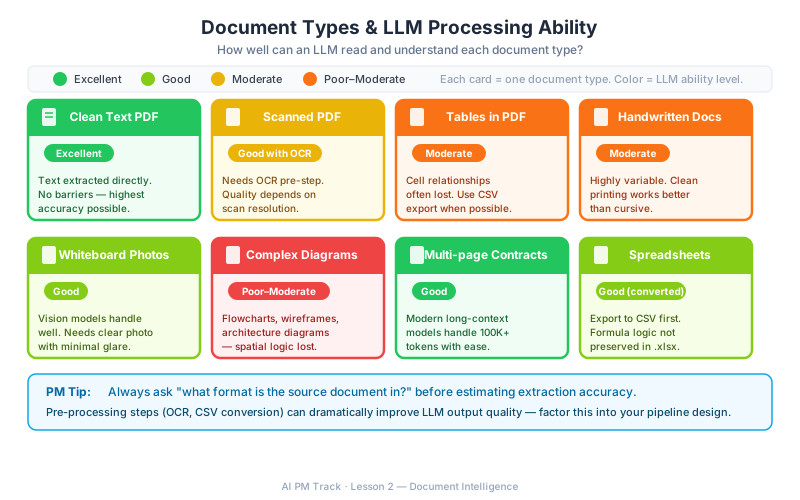
| Document Type | LLM Performance | Notes |
|---|---|---|
| Clean text PDF | Excellent | Text is directly readable; very high accuracy |
| Scanned PDF (image-based) | Good | Requires a vision/multimodal model; DPI and scan quality matter significantly |
| Tables in a PDF | Moderate | Simple single-level tables work well; nested or merged cells frequently break |
| Handwritten text | Moderate | Legible print handwriting works; cursive or poor handwriting is unreliable |
| Photos of whiteboards | Good | Works well for clear text and simple diagrams; small or faint writing may be missed |
| Complex diagrams and flowcharts | Poor to Moderate | LLMs can describe diagrams but struggle with precise spatial relationships |
| Multi-page contracts | Good | Modern long-context models (Claude 3.5+, GPT-4o) handle 100+ pages well |
| Spreadsheets (Excel, CSV) | Good | Best when converted to text/CSV first; direct Excel upload varies by tool |
| Email threads | Excellent | Clean text format; models handle threading and attribution well |
| Presentation slides (PowerPoint) | Moderate | Text extracts cleanly; layout and visual hierarchy are often lost |
| Forms with checkboxes / radio buttons | Moderate | Works better with vision models; checkbox state detection is unreliable |
| Tables in images (not PDF) | Moderate | Performance depends heavily on image quality and table complexity |
What "Multimodal" Means in Plain English
Think of it like hiring two different consultants:
- Text-only model: A brilliant reader who can only work with printed text you hand them on paper. If you give them a photograph, they stare at it blankly.
- Multimodal model: A brilliant reader who can also look at a photograph, a whiteboard, a hand-drawn sketch, or a scanned document and understand what they see.
Modern tools like Claude 3.5 Sonnet, GPT-4o, and Gemini 1.5 Pro are all multimodal. When you upload a PDF to Claude.ai and ask it to extract information, it is using its vision capabilities to "see" the document if it contains images or scanned content, and its text processing capabilities for digital text.
The practical implication: If your document is a digital PDF with embedded text (you can highlight the text), a text-capable model handles it. If it is a scanned document (a photo of a page), you need a multimodal/vision model. Most modern AI tools default to multimodal, but it is worth confirming.
The Confidence Problem
One thing that surprises PMs: LLMs do not always tell you when they are uncertain. A model may extract a number from a blurry invoice with apparent confidence — and be wrong. This is called hallucination, and it is not about the model lying; it is about the model filling in gaps when the signal is ambiguous.
Rule of thumb: the lower the document quality, the higher the risk of subtle errors. Always validate AI-extracted data against source documents for high-stakes fields (amounts, dates, legal obligations).
Part 3: Document Preparation — The Key to Good Results (25 min)
The Single Most Important Insight
The difference between a good AI extraction and a bad one is often not the AI — it is the quality of the document you feed it.
An analogy: if you ask even the sharpest analyst to read a faded photocopy of a fax of a photocopy, you will get errors. The same is true for AI. Garbage in, garbage out applies here just as much as anywhere else in technology.
Best Practices for Document Preparation
1. Use text-based PDFs, not scans, whenever possible
When you save a document as PDF from Word, Google Docs, or any modern application, the text is embedded digitally. You can highlight it, search it, copy-paste it. This is a text-based PDF. AI handles it with near-perfect accuracy.
A scanned PDF is a photograph of a page. The AI must use vision/OCR to "read" it, introducing additional steps and potential errors. When you have a choice between scanning a document or saving it digitally, always choose the digital route.
2. If you must scan: optimize your scan settings
- Resolution: 300 DPI minimum, 400 DPI preferred
- Color: grayscale or black-and-white for text-heavy documents
- Alignment: scan straight, not at an angle — even 5 degrees of tilt degrades accuracy
- Lighting: even, no shadows over text
- Paper: flat, not folded or crumpled at the edges
3. For tables: simpler is always better
Consider these two table styles:
Before (complex, merged cells):
|     Costs       |        Q1        |
| Dev  | Design   | Dev  | Design    |
|  $50k|  $30k    | $45k |  $35k     |
After (flattened):
| Category | Quarter | Amount |
| Dev      | Q1      | $50,000 |
| Design   | Q1      | $30,000 |
| Dev      | Q2      | $45,000 |
| Design   | Q2      | $35,000 |
The flattened version extracts with near-perfect accuracy. The merged-cell version frequently produces errors or garbled output. If you control the document template, design tables with AI extraction in mind.
4. For long contracts: break them into logical sections
Instead of uploading a 60-page contract as one block and asking "what are the key terms?", break your prompt into sections:
- "Extract all payment terms and deadlines from pages 1–15"
- "Identify all termination clauses"
- "Find all liability cap language"
Section-by-section prompting produces more accurate, reliable results than one sweeping query over a very long document.
5. For images and photos: include visible text labels
If you are photographing a whiteboard or a diagram, write labels clearly and in print, not cursive. Ensure all text is in frame and not obscured by reflections, markers, or shadows. Photograph straight-on, not at an angle.
Before / After: How Preparation Changes Results
Scenario: Extracting a total amount from a scanned invoice
| Condition | Result |
|---|---|
| Good scan (300 DPI, flat, straight) | "$12,450.00" — correct |
| Poor scan (150 DPI, slight angle, shadow on corner) | "$12,450.00" — possibly correct, or "$12,450.00" misread as "$12,950.00" if a "4" is shadowed |
| Very poor scan (fax copy, torn edge) | "$1?,450.00" — garbled, or AI invents a plausible number |
For a $12,450 invoice, a single digit error costs you real money. The fix is not a better AI — it is a better scan.
Part 4: Real-World Document AI Use Cases (20 min)
Use Case 1: Invoice Processing
What you extract: Vendor name, invoice number, invoice date, payment due date, line items (description + amount), subtotal, tax, total due, payment terms, bank details.
What works well: Clean PDFs from vendor accounting systems extract with 95%+ accuracy. Line items, totals, and dates are usually reliable.
What doesn't work as well: Handwritten invoices, unusual layouts, invoices with embedded images instead of text amounts.
Watch out for: Tax calculation errors when rates are complex; line items that span page breaks; duplicate invoices if the same document is submitted twice with minor formatting differences.
PM takeaway: Invoice processing automation is one of the most proven AI document use cases. ROI is measurable and fast. Start here if your team handles high invoice volumes.
Use Case 2: Contract Review
What you extract: Effective date, parties involved, payment terms, delivery obligations, IP ownership clauses, termination conditions, liability caps, governing law, renewal/auto-renewal dates.
What works well: Finding specific clause types is very reliable. Long-context models (Claude 3.5, GPT-4o) handle 50–100+ page contracts well. Summarizing obligations per party works well.
What doesn't work as well: Nuanced legal interpretation ("does this clause mean X or Y?") — AI can identify the clause but should not replace legal counsel for interpretation. Cross-references between sections can sometimes be missed.
Watch out for: Over-trusting AI summaries on high-stakes legal terms. AI extracts and summarizes, but a lawyer still needs to sign off on anything that carries real risk.
PM takeaway: Use AI for a first pass — surface the key terms, flag the auto-renewal dates, identify the payment schedule. Then have humans validate the critical parts. You save 60–80% of the reading time, not 100%.
Use Case 3: Resume Screening
What you extract: Candidate name, contact information, years of experience, education (degree, institution, year), job history (company, title, dates), skills and technologies, certifications, notable projects.
What works well: Structured resumes in standard formats extract cleanly. Skills lists, education, and dates are reliable. Summarizing experience into a short paragraph works well.
What doesn't work as well: Creative or design-focused resumes (heavy visuals, non-standard layouts). Two-column resumes frequently misorder the extracted content. Gaps in employment may be missed.
Watch out for: Bias amplification — AI may deprioritize non-traditional career paths or unconventional formats. Human review of AI-ranked candidates is essential. Check your legal/HR compliance requirements before automating screening decisions.
PM takeaway: AI is excellent for handling the initial data extraction from resumes, reducing time to create a standardized comparison matrix. Never let it make hiring decisions autonomously.
Use Case 4: Meeting Notes
What you extract: Meeting title, date, attendees, agenda items, decisions made, action items (with owners and due dates), open questions, next meeting date.
What works well: Clean transcripts or well-structured notes summarize extremely well. Action item extraction is highly reliable. Decisions vs. discussion can be distinguished accurately.
What doesn't work as well: Informal or stream-of-consciousness notes with no structure. Spoken transcripts with multiple overlapping speakers can misattribute who said what.
Watch out for: Action items that are implicit ("we should look into this") rather than explicit ("John will complete the analysis by Friday"). AI captures the explicit ones reliably; implicit commitments require human review.
PM takeaway: This is one of the highest-value, lowest-risk use cases for PMs. Meeting notes are internal, errors are low-stakes, and the time savings are immediate. Most teams see 80–90% time reduction on post-meeting documentation.
Use Case 5: Technical Documentation
What you extract: API endpoint names, HTTP methods (GET/POST/etc.), required and optional parameters, response formats, authentication requirements, example requests and responses, error codes.
What works well: Well-structured API docs, README files, and specification documents extract very accurately. Converting API documentation into a structured reference table is fast and reliable.
What doesn't work as well: Poorly written documentation with ambiguous parameter descriptions, inconsistent naming, or examples that contradict the spec.
Watch out for: Outdated documentation — AI extracts what is written, even if what is written is wrong. Validate extracted specs against the actual implementation.
PM takeaway: When onboarding to a new vendor API or reviewing a contractor's delivered documentation, AI extraction can cut your review time significantly and help you spot gaps or inconsistencies.
Part 5: Hands-On — Test 3 Document Types (20 min)
The Exercise
Each participant will upload three different document types and test AI extraction quality firsthand. The goal is to develop an intuition for where AI performs well vs. where you need to be cautious.
Document 1: A Clean PDF Report
What to use: Any digital-native PDF — an annual report, a project status report, a vendor proposal, a research summary.
What to test: Ask the AI to extract: the document title, author or organization, publication date, 3–5 key findings or recommendations, and any tables or figures described in the document.
Expected result: High accuracy. Text extracts cleanly and the AI should summarize well.
What to note: Does it miss any key information? Does the summary accurately represent the document? Does it invent anything not present in the source?
Document 2: A Scanned Invoice or Receipt
What to use: A scanned PDF invoice or a photo of a paper receipt. The messier, the more instructive.
What to test: Ask the AI to extract: vendor/merchant name, date, all line items with amounts, subtotal, tax, and total.
Expected result: Moderate to good accuracy depending on scan quality. You will likely see at least one minor error.
What to note: Where did it get it right? Where did it make mistakes? Were errors in high-value fields (totals) or low-value fields (vendor address)?
Document 3: A Complex Table or Spreadsheet
What to use: Export a section of a spreadsheet to PDF, or screenshot a complex table from a report. Include merged cells or multi-level headers if possible.
What to test: Ask the AI to extract the table as structured data, with column headers and all rows.
Expected result: Moderate accuracy. Simple tables will work well. Merged cells and multi-level headers will cause problems.
What to note: How does the AI handle ambiguity in merged cells? Does it preserve the structure correctly? What would you have to do to prepare this table before sending it to AI?
Scoring Rubric
Rate each extraction across three dimensions (1–5 scale):
| Dimension | 1 (Poor) | 3 (Acceptable) | 5 (Excellent) |
|---|---|---|---|
| Accuracy | Multiple incorrect values | Minor errors in non-critical fields | All values correct |
| Completeness | Missing more than 25% of requested fields | Missing 1–2 minor fields | All requested fields present |
| Formatting | Output is hard to use as-is | Requires some cleanup | Ready to use immediately |
Typical benchmark scores across document types:
| Document Type | Accuracy | Completeness | Formatting |
|---|---|---|---|
| Clean PDF Report | 4–5 | 4–5 | 4–5 |
| Scanned Invoice (good scan) | 4 | 4 | 3–4 |
| Scanned Invoice (poor scan) | 2–3 | 3 | 2–3 |
| Complex Table | 3–4 | 3–4 | 2–3 |
Debrief questions:
- Which document type surprised you — better or worse than expected?
- Where did preparation quality have the most visible impact on results?
- Which extraction would you trust enough to feed directly into a business system without human review? Which would you not?
Part 6: PM Decision Framework (10 min)
When to Use AI Document Extraction vs. Alternatives
Not every document extraction problem calls for LLMs. Here is a simple framework for choosing the right tool:
| Situation | Recommended Approach |
|---|---|
| High-volume, highly standardized documents (hundreds of identical forms) | Traditional OCR / specialized software (e.g., ABBYY, AWS Textract) — faster, cheaper at scale, more predictable |
| High-volume, varied documents needing understanding (contracts, reports) | LLM-based extraction — handles variation, understands context |
| Low-volume, complex, one-off documents | LLM-based extraction — the flexibility is worth the cost |
| Legally binding decisions requiring auditability | Human review with AI as first-pass assistant |
| Documents with known templates / fixed fields | Template-based OCR — more accurate, less expensive |
| Documents with unknown structure and varied formats | LLM — the only tool that can handle true variability |
Cost-Benefit Analysis Template
Before committing to an AI document workflow, estimate these numbers:
| Factor | Your Estimate |
|---|---|
| Number of documents processed per month | __ |
| Current average time per document (minutes) | __ |
| Current cost per hour of labor | __ |
| Current monthly cost (docs x time x rate / 60) | __ |
| Estimated AI accuracy (0–100%) | __ % |
| Estimated human review time with AI assist (minutes per doc) | __ |
| Projected monthly cost with AI | __ |
| Monthly savings | __ |
| Expected accuracy/error rate | __ % |
| Cost of a single error (what does it take to fix?) | __ |
The business case usually hinges on two things: volume and error cost. High volume + low error cost = strong AI case. Low volume + high error cost = proceed carefully or stay manual.
Risk Assessment: What if AI Gets It Wrong?
Every AI extraction carries some error rate. The question PMs must ask is: what is the consequence of an error, and how quickly would we catch it?
Risk levels by field type:
| Field | Error Risk Level | Why |
|---|---|---|
| Vendor name | Low | Easily caught by human spot-check |
| Invoice total | High | Financial loss if paid on wrong amount |
| Contract deadline | Critical | Missed deadlines can trigger penalties |
| Resume skills list | Medium | Wrong screening decision may be caught in interviews |
| Action item owner | Medium | Task falls through the cracks |
| API parameter type | High | Bad documentation causes developer integration errors |
Mitigation strategies:
- Validation rules — set up automated checks (e.g., "flag any invoice total that differs from the line item sum by more than $1")
- Human-in-the-loop for high-stakes fields — require human sign-off on amounts, dates, and legal obligations
- Confidence thresholds — some AI tools return a confidence score; set a threshold below which a human must review
- Audit trail — log the source document alongside the extracted data so errors can be traced and corrected
The PM's rule of thumb: AI extraction is a tool, not a replacement for judgment. Use it to handle the volume, speed up the routine, and surface what matters. Keep humans in the loop for decisions that carry real consequences.
Summary
| What we covered | Key takeaway |
|---|---|
| What document extraction is | Turning unstructured documents into structured, usable data |
| LLM capabilities by document type | Clean text PDFs: excellent. Scanned/complex: varies significantly |
| Multimodal models | Claude, GPT-4o, Gemini can "see" images and scanned docs directly |
| Document preparation | Quality of input drives quality of output — garbage in, garbage out |
| Real-world use cases | Invoices, contracts, resumes, meeting notes, technical docs all viable |
| Decision framework | Choose AI when volume is high and document structure varies |
| Risk management | Keep humans in the loop for high-stakes fields |
Checkpoint: Predict Which Document Types Work Well with AI
Before your next session, complete this prediction exercise:
Look at 5 documents your team currently processes manually. For each one, predict:
- Document type: What kind of document is it?
- Format quality: Is it a clean digital file, a good scan, or a poor scan?
- Complexity: Simple (one page, clear fields) or complex (multi-page, merged tables, cross-references)?
- Your prediction: Excellent / Good / Moderate / Poor AI extraction performance
- Stakes: What is the cost if AI extracts a value incorrectly?
- Your recommendation: AI-first, AI-assisted (human review), or manual-only?
Bring your predictions to the next session. We will test two or three of them together and see how your instincts compare to the actual results.
Next session: Session B3 — "Normal vs. Pro: How to Choose the Right AI Model for the Job"
Course: AI-Powered Development (PM Track) | Session B2 of 7