 JustLearn
Lesson 7: Prompting to Chart — Visual Output with AI
Course: AI-Powered Development (PM Track) | Duration: 2 hours | Level: Intermediate
This is the final lesson of the PM Track. By the end of this session you will be able to produce professional-quality charts, diagrams, and dashboards using AI — in under 5 minutes each.
Overview
| Part | Topic | Time |
|---|---|---|
| 1 | The Visualization Landscape | 15 min |
| 2 | Tool-to-Visual Mapping | 25 min |
| 3 | Live Demo — Creating 3 Types of Visuals | 30 min |
| 4 | Key Prompting Techniques for Visuals | 20 min |
| 5 | Advanced — Dashboards and Interactive Reports | 15 min |
| 6 | Hands-on Exercise — Create 3 Visuals | 25 min |
Part 1: The Visualization Landscape (15 min)
The Core Problem
Most PMs know what they want to communicate. The bottleneck is turning raw data or a mental model into something a stakeholder can read in 10 seconds. Traditional approaches either take too long (Visio, Figma, PowerPoint from scratch) or produce low-quality output (Excel default charts).
AI changes this — but only if you pick the right tool for the right job.
What's Possible with AI Visualization Today
AI can generate three broad categories of visuals:
1. Code-rendered visuals (highest quality) AI writes code (Mermaid, React, HTML/SVG) that a browser renders into a chart or diagram. These are interactive, precise, and exportable. Claude excels here via its Artifacts feature.
2. AI-designed graphics (medium quality) Tools like Gamma.app, Canva AI, or Napkin.ai generate stylized images, infographics, or slide decks using a combination of templates and generative AI. Fast but less precise.
3. Data visualization from natural language (emerging) Tools like ChatGPT with Advanced Data Analysis can ingest a CSV and produce a chart directly. Limited customization but very fast for exploration.
The Trap PMs Fall Into
Asking the wrong tool for the wrong output:
- Asking DALL-E to draw a bar chart (it hallucinates axis labels)
- Asking Claude without specifying Mermaid (you get a text description, not a diagram)
- Asking Canva AI to build an interactive dashboard (it can't)
Rule of thumb: If the output needs to be accurate, use a code-rendered tool. If it needs to be beautiful, use a design-first tool. If it needs to be both, combine them.
Part 2: Tool-to-Visual Mapping (25 min)
The Master Reference Table
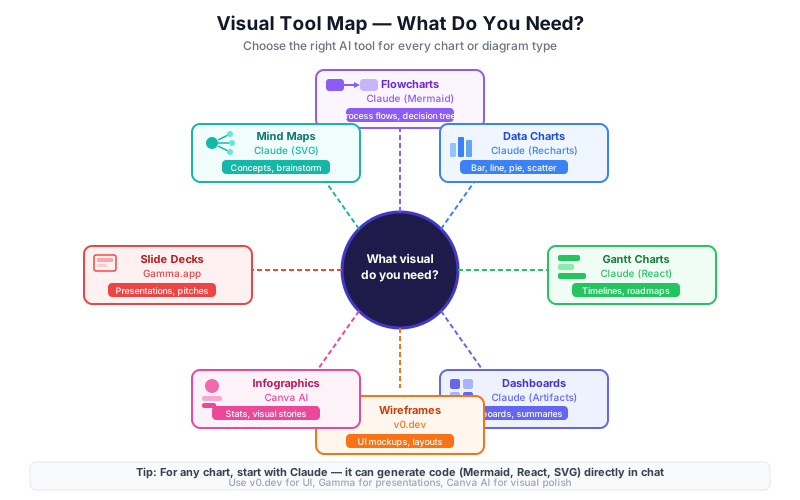
| Visual Type | Best Tool | Format Generated | Quality | Free? |
|---|---|---|---|---|
| Flowcharts / Process Diagrams | Claude | Mermaid code | High | Free tier available |
| Architecture Diagrams | Claude | Mermaid (graph TD) | High | Free tier available |
| Sequence Diagrams | Claude | Mermaid (sequenceDiagram) | High | Free tier available |
| Data Charts (bar, line, pie) | Claude Artifacts | React + Recharts | Very High | Free tier available |
| Data Charts (quick explore) | ChatGPT + Data Analysis | Python matplotlib | Medium | ChatGPT Plus |
| Gantt Charts | Claude Artifacts | React (custom) | High | Free tier available |
| Project Timelines | Claude Artifacts | React + Recharts | High | Free tier available |
| Dashboards (multi-chart) | Claude Artifacts | React | Very High | Free tier available |
| Wireframes / UI Mockups | Claude Artifacts | HTML + Tailwind CSS | High | Free tier available |
| Wireframes / UI Mockups (polished) | v0.dev | React + shadcn/ui | Very High | Free tier available |
| Infographics | Canva AI / Gamma.app | PNG / editable deck | Medium-High | Freemium |
| Slide Decks | Gamma.app | Web slides / PPTX | High | Freemium |
| Slide Decks (manual) | Claude + PPTX outline | Structured text | Medium | Free |
| Mind Maps | Claude | Mermaid (mindmap) | High | Free tier available |
| Mind Maps (visual) | Napkin.ai | SVG / PNG export | High | Freemium |
| Network / Relationship Diagrams | Claude | Mermaid (graph) | High | Free tier available |
Deep Dive: Each Visual Type
Flowcharts and Process Diagrams
What it looks like: Boxes connected by arrows showing a process, decision tree, or workflow.
How to prompt:
Create a Mermaid flowchart showing [describe your process].
Use top-to-bottom layout (TD). Include decision diamonds where appropriate.
Quality level: Precise, editable, renderable in any Markdown viewer (GitHub, Notion, Confluence, GitLab).
Free vs Paid: Claude free tier works. Rendering is free in Mermaid Live Editor (mermaid.live).
Data Charts (Bar, Line, Pie, Area)
What it looks like: Standard business charts with proper axes, labels, tooltips, and legends.
How to prompt:
Create a React component using Recharts that renders a [chart type] with the following data:
[paste your data]
Include axis labels, a legend, and hover tooltips. Use responsive container.
Quality level: Production-ready. Interactive. Embeddable in React apps.
Free vs Paid: Claude free tier works for Artifacts. Recharts is open source.
Gantt Charts
What it looks like: Horizontal bar chart showing tasks across a timeline, grouped by phase.
How to prompt:
Create a React Gantt chart component using Recharts or a custom SVG implementation.
Here are the tasks: [paste task list with start/end dates]
Color-code by phase. Show today's date as a vertical line.
Quality level: High. Claude can build full interactive Gantt charts with custom React.
Free vs Paid: Claude free tier works.
Dashboards (Multi-Chart)
What it looks like: A single page with KPI cards, 2-4 charts, and a summary table.
How to prompt:
Create a React dashboard component with:
- 3 KPI cards at the top: [metric 1], [metric 2], [metric 3]
- A line chart for [trend data]
- A bar chart for [comparison data]
- A summary table at the bottom
Use Recharts for charts. Style with Tailwind CSS.
Quality level: Very high when using Claude Artifacts.
Free vs Paid: Claude free tier works.
Wireframes and UI Mockups
What it looks like: A structural layout of a web page or app screen, showing components without final styling.
How to prompt (Claude):
Create an HTML wireframe mockup of [describe the page].
Use Tailwind CSS for layout. Use gray placeholder boxes for images.
Include a header, navigation, main content area, and footer.
How to prompt (v0.dev):
Build a [page name] page for [describe the app].
Include [list key components].
Use shadcn/ui components.
Quality level: v0.dev produces polished React components ready for production. Claude produces solid wireframes.
Free vs Paid: v0.dev has a free tier with a monthly credit limit. Claude free tier works for HTML wireframes.
Infographics
What it looks like: A visually designed single-image or document combining text, icons, and data.
How to prompt (Canva AI): Go to Canva > Create a design > Infographic > Use "Magic Design" with your text prompt.
How to prompt (Gamma.app):
Create an infographic about [topic] with the following key points:
1. [point 1]
2. [point 2]
3. [point 3]
Use a clean, modern design with icons.
Quality level: Good for stakeholder-facing documents. Not interactive.
Free vs Paid: Canva free tier works with watermarks. Gamma.app free tier allows limited exports.
Slide Decks
What it looks like: A structured presentation with 5-15 slides, each with a headline, supporting visual, and talking points.
How to prompt (Gamma.app):
Create a presentation about [topic].
Audience: [describe audience].
Key message: [your one-line thesis].
Include slides for: [list slide topics].
How to prompt (Claude + PPTX structure):
Create a slide-by-slide outline for a [X]-slide presentation about [topic].
For each slide: provide a title, 3 bullet points, and a visual recommendation.
Format as a numbered list I can paste into PowerPoint.
Quality level: Gamma.app produces web-native slides that export to PDF or PPTX. Claude produces structured outlines for manual assembly.
Free vs Paid: Gamma.app free tier is generous. Claude is free.
Mind Maps
What it looks like: A central node with branching topics and sub-topics.
How to prompt (Claude — Mermaid):
Create a Mermaid mindmap for [topic].
The central concept is [X].
Include 4-5 main branches and 2-3 sub-topics per branch.
How to prompt (Napkin.ai): Paste your text or outline into Napkin.ai. It auto-generates a visual mind map from the content.
Quality level: Mermaid mind maps are clean and text-renderable. Napkin.ai is more visually polished.
Free vs Paid: Mermaid is free. Napkin.ai has a free tier.
Part 3: Live Demo — Creating 3 Types of Visuals (30 min)
Demo 1: Mermaid Diagram of a CI/CD Pipeline
The prompt to use:
Create a Mermaid flowchart diagram showing a standard CI/CD pipeline for a web application.

The pipeline should include these stages in order:
1. Developer pushes code to feature branch
2. Automated tests run (unit tests, linting)
3. Decision: tests pass?
   - If NO: notify developer, stop pipeline
   - If YES: continue
4. Pull request created
5. Code review by peer
6. Decision: review approved?
   - If NO: request changes, return to developer
   - If YES: merge to main branch
7. Build Docker image
8. Deploy to staging environment
9. Automated integration tests on staging
10. Decision: staging tests pass?
    - If NO: notify team, rollback
    - If YES: deploy to production
11. Monitor production, send deployment notification

Use top-to-bottom layout (TD). Use different shapes for decisions (diamonds) and actions (rectangles). Add brief labels on the yes/no branches.
Expected Mermaid output:
flowchart TD
    A[Developer pushes to feature branch] --> B[Automated tests run\nunit tests + linting]
    B --> C{Tests pass?}
    C -- No --> D[Notify developer\nPipeline stopped]
    C -- Yes --> E[Pull request created]
    E --> F[Code review by peer]
    F --> G{Review approved?}
    G -- No --> H[Request changes\nReturn to developer]
    H --> A
    G -- Yes --> I[Merge to main branch]
    I --> J[Build Docker image]
    J --> K[Deploy to staging]
    K --> L[Integration tests on staging]
    L --> M{Staging tests pass?}
    M -- No --> N[Notify team\nRollback staging]
    M -- Yes --> O[Deploy to production]
    O --> P[Monitor production\nSend deployment notification]
How to render it:
Option A — Mermaid Live Editor (fastest):
- Go to mermaid.live
- Paste the Mermaid code block (everything inside the
```mermaid ```fences) - The diagram renders in real time on the right panel
- Click the "Download SVG" or "Download PNG" button to export
Option B — Claude Artifacts: Prefix the prompt with: "Render this as a live Mermaid diagram in an artifact."
Option C — GitHub/GitLab/Notion: Paste the fenced Mermaid block directly into a Markdown file. All three platforms render it natively.
Demo 2: Line Chart with Trend Line from Revenue Data
The prompt to use (with sample data):
Create a React component using Recharts that shows monthly revenue with a trend line.

Use this data:
Month, Revenue, Target
Jan 2024, 142000, 130000
Feb 2024, 158000, 135000
Mar 2024, 147000, 140000
Apr 2024, 173000, 145000
May 2024, 168000, 150000
Jun 2024, 195000, 155000
Jul 2024, 201000, 160000
Aug 2024, 189000, 165000
Sep 2024, 218000, 170000
Oct 2024, 234000, 175000
Nov 2024, 228000, 180000
Dec 2024, 251000, 185000

Requirements:
- Line chart with two lines: actual Revenue (blue, #0b5351) and Target (gray dashed, #999999)
- X-axis: month labels, rotated 45 degrees
- Y-axis: formatted as $K (e.g., $150K)
- Hover tooltip showing both values for that month
- Legend at the top
- Title: "2024 Monthly Revenue vs Target"
- Responsive container, 800x400 size
- A shaded area under the Revenue line to fill toward zero

Use React with Recharts (AreaChart + Line combination). Make it a self-contained component that exports default.
What the output looks like:
Claude will generate a complete React component. In the Claude Artifacts panel, it renders immediately as an interactive chart — hover over any data point to see the tooltip.
How artifacts work:
- When you send this prompt to Claude (claude.ai), Claude detects you want a rendered output and opens an "Artifact" panel on the right side of the screen.
- The artifact is a live React sandbox — you can interact with the chart immediately.
- To iterate: type your change request in the same thread (e.g., "Change the revenue line to green" or "Add a reference line at $200K labeled 'Milestone'").
- To export: click the share icon on the artifact, or copy the code and paste it into any React project.
Note on Claude free tier: Artifacts are available on Claude.ai's free tier but with usage limits. If you hit the limit, the prompt still works — Claude will output the code, and you can paste it into a React sandbox like codesandbox.io or stackblitz.com.
Demo 3: Gantt Chart from Sprint Plan
The prompt to use:
Create an interactive Gantt chart as a React component.

Here is the sprint plan data:
Phase, Task, Owner, Start Date, End Date, Status
Discovery, Stakeholder interviews, Sarah, 2024-03-01, 2024-03-05, Done
Discovery, Requirements doc, Sarah, 2024-03-04, 2024-03-08, Done
Discovery, Technical feasibility, Dev Team, 2024-03-06, 2024-03-10, Done
Design, Wireframes, UX, 2024-03-11, 2024-03-18, Done
Design, Design review, All, 2024-03-18, 2024-03-20, Done
Design, Prototype, UX, 2024-03-19, 2024-03-25, In Progress
Development, Backend API, Dev Team, 2024-03-20, 2024-04-05, Planned
Development, Frontend UI, Dev Team, 2024-03-25, 2024-04-10, Planned
Development, Integration, Dev Team, 2024-04-05, 2024-04-12, Planned
Testing, QA testing, QA Team, 2024-04-10, 2024-04-18, Planned
Testing, Bug fixes, Dev Team, 2024-04-15, 2024-04-22, Planned
Launch, Staging deploy, DevOps, 2024-04-20, 2024-04-22, Planned
Launch, Production deploy, DevOps, 2024-04-24, 2024-04-24, Planned

Requirements:
- Horizontal bar chart showing each task as a bar spanning its date range
- Color-code by Phase: Discovery=blue, Design=purple, Development=green, Testing=orange, Launch=red
- Show task status with visual indicator: Done=solid fill, In Progress=striped fill, Planned=light fill
- X-axis: calendar dates
- Y-axis: task names
- Hover tooltip: task name, owner, start/end date, status
- Vertical line showing today's date (2024-03-22)
- Title: "Q1-Q2 2024 Project Timeline"
- Legend showing phases and status types
- Responsive width, 600px height

Build this as a self-contained React component. Use SVG for the Gantt bars if Recharts doesn't support this natively.
Expected interactive timeline:
The output will be a fully rendered interactive Gantt chart where:
- Each phase is color-coded
- Hovering a bar shows task details
- The red "today" line shows current progress against the plan
- The visual immediately communicates which tasks are behind or ahead
Part 4: Key Prompting Techniques for Visuals (20 min)
Technique 1: Specify the Chart Type Explicitly
AI cannot read your mind. "Visualize this data" produces unpredictable results.
| Before (vague) | After (specific) |
|---|---|
| "Visualize our sales data" | "Create a grouped bar chart showing sales by region for each quarter" |
| "Show me the workflow" | "Create a Mermaid flowchart showing the approval workflow with decision points" |
| "Make a timeline" | "Create a horizontal Gantt chart with tasks on the Y-axis and dates on the X-axis" |
Technique 2: Provide Data Directly — Paste, Don't Describe
Describing your data produces estimates. Pasting your data produces accuracy.
Before:
Create a bar chart. We have 4 regions: North, South, East, West. North does the best, South is second, etc.
After:
Create a bar chart with this data:
Region, Q1 Revenue, Q2 Revenue
North, 245000, 267000
South, 198000, 211000
East, 176000, 189000
West, 221000, 238000
Formats Claude understands well: CSV, Markdown tables, JSON arrays, pipe-delimited text, plain numbered lists.
Technique 3: Specify the Rendering Format
Tell Claude exactly what format you want the output in. This determines where you can use the output.
| If you want to... | Say this in the prompt |
|---|---|
| Render in GitHub / Notion / Confluence | "Output as a Mermaid diagram in a fenced code block" |
| Create an interactive chart in Claude | "Create a React component with Recharts, render as an artifact" |
| Embed in a React app | "Create a self-contained React component, export default" |
| Paste into PowerPoint / Google Slides | "Output as a structured text table I can paste into a presentation" |
| Use in a Python notebook | "Create a matplotlib chart in Python. Show the code." |
Before:
Make a diagram of our database schema.
After:
Create a Mermaid entity-relationship diagram (erDiagram) showing our database schema with the following tables and relationships: [tables]. Output as a fenced Mermaid code block.
Technique 4: Request Interactivity Explicitly
By default, Claude produces static charts. You must ask for interactivity.
Elements you can request:
"hover tooltips showing exact values""clickable legend to show/hide data series""zoom and pan on the x-axis""dropdown to switch between monthly and quarterly view""a date range slider to filter the data"
Example:
Create a line chart showing monthly revenue. Include:
- Hover tooltips showing the exact revenue value and month
- A clickable legend so users can toggle between the Revenue and Target lines
- A brush/scrubber at the bottom to zoom into a specific date range
Technique 5: Define Colors and Branding
Before:
Create a bar chart of our NPS scores by product.
After:
Create a bar chart of our NPS scores by product.
Use these brand colors:
- Primary: #0b5351 (dark teal)
- Secondary: #f5f5f5 (light gray background)
- Accent: #e87b35 (orange for highlights)
- Text: #1a1a1a
- Grid lines: #e0e0e0 (very light gray)

Bar color: use #0b5351 for positive NPS, #e87b35 for NPS below 30.
Background: #f5f5f5.
Technique 6: Specify Dimensions and Responsiveness
For fixed-size exports (presentations, documents):
Make this chart 1200x600 pixels. Use a font size of 14px for labels. This will be exported as a PNG for a slide deck.
For web/responsive:
Wrap the chart in a ResponsiveContainer from Recharts. It should fill 100% of its parent container width and have a fixed height of 400px.
For mobile:
The chart needs to work on mobile. On screens under 600px, hide the legend and simplify axis labels to abbreviations (Jan, Feb, Mar).
Technique 7: Include Sample Data in Every Visual Prompt
Never submit a chart prompt without data — even if you only have rough numbers. Sample data forces the AI to produce a correctly formatted output that you can edit with real data.
Template for including data:
[Chart type and description]

Data:
[paste CSV, table, or list]

Additional requirements:
[formatting, colors, interactivity]
If you don't have real data yet, say: "Use realistic placeholder data for [your context] that I'll replace later." Claude will generate plausible sample data with the right structure.
Before/After Summary Table
| Technique | Before | After |
|---|---|---|
| Chart type | "Visualize this" | "Create a stacked bar chart" |
| Data format | "We had good sales last year" | Paste actual CSV |
| Render format | (not specified) | "Mermaid flowchart, fenced code block" |
| Interactivity | (not specified) | "Hover tooltips, clickable legend" |
| Colors | (not specified) | "Use #0b5351 for bars, #f5f5f5 background" |
| Dimensions | (not specified) | "1200x600px for slide export" |
| Sample data | "I'll add data later" | Paste real or placeholder data now |
Part 5: Advanced — Dashboards and Interactive Reports (15 min)
Creating Multi-Chart Dashboards with Claude Artifacts
A single prompt can generate a complete dashboard page. The key is to describe the full layout.
Dashboard prompt template:
Create a React dashboard component for [use case].

Layout:
- Top row: 3 KPI cards side by side
  - Card 1: "[Metric Name]" showing [value format], trending [up/down]
  - Card 2: "[Metric Name]" showing [value format], trending [up/down]
  - Card 3: "[Metric Name]" showing [value format], trending [up/down]
- Middle row: two charts side by side
  - Left: [chart type and data description]
  - Right: [chart type and data description]
- Bottom: [table or single wide chart]

Data:
[paste all data here]

Styling:
- Background: #f5f5f5
- Card background: white with subtle shadow
- Use brand colors: [list colors]
- Font: system-ui or Inter

Make it a single self-contained React component using Recharts for charts and Tailwind CSS for layout.
Iterating on a dashboard:
Once Claude generates the dashboard in an Artifact, you can refine it in the same conversation:
- "Move the bar chart to the top row and make the KPI cards smaller"
- "Add a filter dropdown at the top to switch between Q1, Q2, Q3, Q4 views"
- "Change the color scheme to match our brand guide — here's our hex values: ..."
- "Add a 'Last updated' timestamp in the bottom right corner"
Combining Charts with Text Narratives
For board reports or stakeholder updates, you can generate a dashboard with built-in commentary.
Prompt:
Create a React component for a quarterly business review page.

Include:
1. A title section: "Q4 2024 Business Review" with the date
2. A two-column layout:
   Left column (60% width):
   - A line chart showing monthly revenue for the quarter
   - A bar chart showing deals closed by sales rep
   Right column (40% width):
   - KPI cards: Total Revenue, Deals Closed, NPS Score
   - A bullet-point summary section labeled "Key Takeaways"
     with these points:
     • Revenue exceeded target by 14%
     • Top rep closed 23 deals vs. team avg of 14
     • NPS improved from 38 to 47

[paste data]
Exporting for Presentations
Option A — Screenshot the Artifact The simplest path: take a screenshot of the rendered artifact and paste it into PowerPoint or Google Slides. Use your browser's built-in screenshot tool or a tool like CleanShot X (macOS).
Option B — Export as HTML
Copy the artifact code and save it as an index.html file. Open in a browser for a standalone interactive page. Share the file or host it on any static hosting service (Netlify, GitHub Pages).
Option C — Embed in a React App
Copy the component code and paste it into your codebase. It is a standard React component — no special setup required beyond having Recharts installed (npm install recharts).
Option D — Use Gamma.app for Slide Decks Generate your charts in Claude, take screenshots, then use Gamma.app to assemble them into a polished slide deck. Gamma's AI will help layout and design the slides around your images.
When to Use AI Visuals vs. Professional Tools
| Situation | Use AI Visuals | Use Professional Tools |
|---|---|---|
| Internal stakeholder update | Yes — fast, good enough | Not necessary |
| Quick data exploration | Yes — iterate in seconds | Too slow |
| Board-level presentation | AI for drafts, refine manually | Tableau/Figma for polish |
| Published report (external) | Start with AI, export and refine | Final version in professional tool |
| Real-time live data dashboard | No — AI generates static snapshots | Tableau, PowerBI, Grafana |
| Production analytics product | No | Dedicated BI tool |
| Regulatory / compliance doc | AI for draft, verify carefully | Professional tool + legal review |
The practical rule: AI visuals are good enough for 80% of what PMs need on a daily basis. Use professional tools when the output will be public-facing, legally significant, or connected to live data sources.
Part 6: Hands-on Exercise — Create 3 Visuals (25 min)
You have 25 minutes to complete all 3 exercises. Use the prompts below — copy them exactly, paste them into Claude, and iterate once based on the output.
Scoring: For each visual, rate yourself on:
- Quality (1-5): Does it look professional?
- Accuracy (1-5): Does it represent the data correctly?
- Speed (mark your time): Did you produce it in under 5 minutes?
Exercise 1: Process Flow Diagram (Mermaid)
Use this prompt (copy and paste directly into Claude):
Create a Mermaid flowchart showing an e-commerce order fulfillment process.

The process:
1. Customer places order on website
2. Payment processing
   - If payment fails: send payment failure email, end
   - If payment succeeds: continue
3. Order sent to warehouse management system
4. Inventory check
   - If item out of stock: notify customer, offer backorder or refund, end
   - If item in stock: continue
5. Pick and pack the order
6. Quality check
   - If quality check fails: repack, return to step 5
   - If quality check passes: continue
7. Generate shipping label
8. Hand off to courier
9. Send shipping confirmation email with tracking number
10. Delivery attempt
    - If delivery fails (nobody home): attempt redelivery next day, up to 3 attempts
    - If 3 attempts fail: return to warehouse, contact customer
    - If delivery succeeds: mark order complete
11. Send delivery confirmation email
12. Request review (3 days after delivery)

Use top-to-bottom layout (TD). Use rectangles for actions, diamonds for decisions, rounded rectangles for start/end. Add brief labels on all branches.

Output as a Mermaid fenced code block.
What to look for in the output:
- All 12 steps present
- Decision diamonds at payment, inventory, quality check, and delivery
- Loop back from quality check failure to repack
- Multiple redelivery loop
- Clear Yes/No labels on all branches
Iteration prompt (if needed):
The diagram is good but the delivery retry loop is unclear. Please make the "up to 3 attempts" loop more visible by adding a counter node and a clear loop-back arrow. Also add color: use green (#22c55e) for the success path nodes and red (#ef4444) for failure/end nodes.
Exercise 2: Data Chart from Spreadsheet Data
Use this prompt (copy and paste directly into Claude):
Create a React component using Recharts showing a product performance comparison.

Data (copy from below):
Product, Jan, Feb, Mar, Apr, May, Jun, Q2 Total, YoY Growth
Product A, 42000, 38000, 51000, 67000, 72000, 78000, 217000, +23%
Product B, 31000, 29000, 35000, 41000, 44000, 46000, 131000, +8%
Product C, 18000, 21000, 19000, 24000, 27000, 31000, 82000, +31%
Product D, 55000, 52000, 58000, 61000, 59000, 63000, 183000, +5%

Requirements:
- Grouped bar chart showing monthly revenue per product (Jan through Jun)
- Four bars per month, one per product
- Colors: Product A=#0b5351, Product B=#2d7d9a, Product C=#e87b35, Product D=#6b7280
- X-axis: month names
- Y-axis: revenue in $K format (e.g., $50K)
- Hover tooltip: show product name and exact revenue
- Legend at the top
- Title: "H1 2024 Revenue by Product"
- Below the chart: a small summary table showing Product, Q2 Total, and YoY Growth for each product
- Responsive container, fixed height 450px
- Export this as a self-contained React component (export default)
What to look for in the output:
- 6 month groups, 4 bars each
- Correct colors assigned to each product
- Tooltip works on hover
- Summary table below chart
- Numbers match the data you provided exactly
Iteration prompt (if needed):
The chart looks great. Two changes:
1. Add a "Switch View" button above the chart that toggles between grouped bars and stacked bars
2. Highlight Product C bars with a small "Top Growth" badge or annotation since it has +31% YoY
Exercise 3: Project Timeline (Gantt Chart)
Use this prompt (copy and paste directly into Claude):
Create a React Gantt chart component for a product launch project.

Sprint plan data:
Phase, Task, Start, End, Status, Owner
Research, Market analysis, 2024-04-01, 2024-04-07, Done, Sarah
Research, Competitor review, 2024-04-03, 2024-04-09, Done, Sarah
Research, User interviews, 2024-04-08, 2024-04-14, Done, Tom
Product, PRD writing, 2024-04-10, 2024-04-18, Done, Sarah
Product, Stakeholder review, 2024-04-17, 2024-04-19, Done, All
Product, Final PRD approval, 2024-04-19, 2024-04-21, Done, Director
Design, UX wireframes, 2024-04-22, 2024-05-03, In Progress, UX Team
Design, Visual design, 2024-05-01, 2024-05-12, In Progress, UX Team
Design, Design QA, 2024-05-10, 2024-05-14, Planned, UX Team
Engineering, Sprint 1 - Core features, 2024-05-06, 2024-05-19, Planned, Dev Team
Engineering, Sprint 2 - Integrations, 2024-05-20, 2024-06-02, Planned, Dev Team
Engineering, Sprint 3 - Polish, 2024-06-03, 2024-06-13, Planned, Dev Team
QA, Testing cycle 1, 2024-06-10, 2024-06-17, Planned, QA Team
QA, Bug fixes, 2024-06-14, 2024-06-21, Planned, Dev Team
QA, Final UAT, 2024-06-20, 2024-06-25, Planned, Stakeholders
Launch, Soft launch, 2024-06-26, 2024-06-26, Planned, All
Launch, Full launch, 2024-07-01, 2024-07-01, Planned, All

Requirements:
- Horizontal Gantt chart: tasks on Y-axis, calendar dates on X-axis
- Color by Phase: Research=#6366f1, Product=#0b5351, Design=#8b5cf6, Engineering=#2d7d9a, QA=#e87b35, Launch=#ef4444
- Status visual: Done=solid color, In Progress=striped pattern or semi-transparent, Planned=very light fill with colored border
- Show today (2024-05-08) as a vertical dashed red line labeled "Today"
- Hover tooltip: task name, owner, start date, end date, status
- Milestone diamonds at "Final PRD approval", "Soft launch", and "Full launch"
- Title: "Product Launch Timeline — Apr through Jul 2024"
- Fixed height 700px to accommodate all tasks
- Group tasks by phase with a subtle divider and phase label on the left

Build using SVG or Canvas directly in React if Recharts doesn't support Gantt natively. Self-contained component, export default.
What to look for in the output:
- All 17 tasks visible
- Phase groupings with labels
- Today line at the correct position (between In Progress and Planned tasks)
- Milestone diamonds at the three key dates
- Hover tooltip with task details
- Visual difference between Done, In Progress, and Planned tasks
Iteration prompt (if needed):
The Gantt looks good. Please add:
1. A "critical path" overlay — highlight in red any tasks that directly block the launch date if delayed
2. A summary row at the top showing overall project progress as a percentage (tasks Done / total tasks)
3. The ability to click on a task bar to expand a detail card showing owner, dates, and a notes field
Checkpoint: PM Track Final Assessment
Checkpoint goal: Produce professional visuals with AI in under 5 minutes each.
Self-Assessment Rubric
Rate yourself on each item (1 = not yet, 3 = confident, 5 = can teach this):
| Skill | 1 | 2 | 3 | 4 | 5 |
|---|---|---|---|---|---|
| I can identify which AI tool is best for a given visual type | |||||
| I always specify chart type explicitly in prompts | |||||
| I paste actual data rather than describing it | |||||
| I specify the rendering format (Mermaid, React, etc.) | |||||
| I request interactivity when needed | |||||
| I define colors/branding in my prompts | |||||
| I can create a Mermaid flowchart in under 3 minutes | |||||
| I can create an interactive data chart in under 5 minutes | |||||
| I can create a Gantt chart in under 5 minutes | |||||
| I know when AI visuals are good enough vs. when to use a professional tool |
Target score for course completion: 40 out of 50 (average of 4 per skill)
Time Benchmark
Complete each exercise and record your time:
| Exercise | Target Time | Your Time | Quality (1-5) |
|---|---|---|---|
| Exercise 1: Process flow diagram | Under 4 min | ______ | ______ |
| Exercise 2: Grouped bar chart | Under 5 min | ______ | ______ |
| Exercise 3: Gantt chart | Under 5 min | ______ | ______ |
If you hit the targets, you have passed the checkpoint.
Quick Reference: The PM Visual Cheat Sheet
The 30-Second Prompt Formula
Create a [CHART TYPE] as a [FORMAT].

Data:
[PASTE YOUR DATA]

Requirements:
- [COLORS/BRANDING]
- [INTERACTIVITY IF NEEDED]
- [DIMENSIONS IF NEEDED]
- [ANY OTHER SPECIFICS]
Tool Selection Flowchart
Do you need accurate data representation?
  YES → Does it need to be interactive/embeddable?
    YES → Claude Artifacts (React + Recharts)
    NO → Is it a diagram/flowchart?
      YES → Claude (Mermaid)
      NO → Claude Artifacts or ChatGPT + Data Analysis
  NO → Does it need to look polished/branded?
    YES → Gamma.app (slides/infographics) or Canva AI
    NO → Claude (quick HTML or text output)
The 5 Most Common PM Visuals and Their Prompts
1. Process flowchart:
Create a Mermaid flowchart (TD) showing [process]. Include decision diamonds for [list decisions]. Output as fenced Mermaid code.
2. KPI dashboard:
Create a React dashboard with KPI cards for [metrics] and a [chart type] for [data]. Use [colors]. Data: [paste data].
3. Project timeline:
Create a React Gantt chart for these tasks: [paste task list with dates]. Color by phase. Show today ([date]) as a vertical line.
4. Comparison chart:
Create a grouped bar chart in React/Recharts comparing [options] across [categories]. Data: [paste CSV]. Include hover tooltips and a legend.
5. Stakeholder presentation chart:
Create a React line chart showing [metric] over time. Data: [paste data]. Export quality: 1200x600px, font 14px, use brand colors [list colors].
PM Track: Course Completion
You have completed all 7 modules of the AI-Powered Development PM Track.
What you can now do
| Module | Capability |
|---|---|
| 1 — ML, AI, and LLMs | Explain how AI works without technical jargon |
| 2 — Document Intelligence | Extract insights from documents with AI |
| 3 — Normal vs. Pro | Choose the right tier and tool for each job |
| 4 — AI as a Tool | Set boundaries and work with AI as a collaborator |
| 5 — Context Engineering | Write prompts that work at project scale |
| 6 — Templates and Structure | Build reusable prompt systems for your team |
| 7 — Prompting to Chart | Produce professional visuals with AI in under 5 minutes |
The PM AI Stack (Your Working Toolkit)
| Job | Tool |
|---|---|
| Research and synthesis | Claude or ChatGPT |
| Document analysis | Claude (long context) |
| Data charts and dashboards | Claude Artifacts (React + Recharts) |
| Diagrams and flowcharts | Claude (Mermaid) |
| UI wireframes | Claude (HTML) or v0.dev |
| Slide decks | Gamma.app |
| Infographics | Canva AI or Napkin.ai |
| Mind maps | Claude (Mermaid) or Napkin.ai |
| Reusable prompt templates | Build your own (Lesson 6) |
End of Lesson 7 — End of AI-Powered Development PM Track