 JustLearn
Lesson 8: MCP — The Universal Tool Protocol
Course: AI-Powered Development (Dev Track) | Duration: 2 hours | Level: Intermediate
Overview
Every AI agent needs tools: the ability to read files, query databases, search the web, send messages, and call APIs. For years, every LLM provider built these integrations from scratch, independently, in incompatible ways. The result was an explosion of duplicated work and a fragmented ecosystem.
The Model Context Protocol (MCP) changes that. It is an open standard that lets any AI agent connect to any tool, service, or data source through a single universal interface — write your integration once, and every MCP-compatible AI can use it.
This lesson covers what MCP is, how it works under the hood, how to connect existing servers, and how to build your own.
Learning Objectives
By the end of this lesson you will be able to:
- Explain the MCP architecture and why it matters
- Describe the protocol flow from initialization to tool call
- Connect popular MCP servers (filesystem, postgres, github) to Claude Code
- Build and register a custom MCP server in both Python and TypeScript
- Apply security best practices when working with MCP
Part 1: What is MCP? (20 min)
The Integration Problem
Imagine you are building a coding assistant. You need it to:
- Read local files
- Query a Postgres database
- Create GitHub pull requests
- Search the web
- Send Slack notifications
Without a standard protocol, every capability requires a custom integration written specifically for your chosen LLM provider. Switch providers — or add a new one — and you rewrite everything.
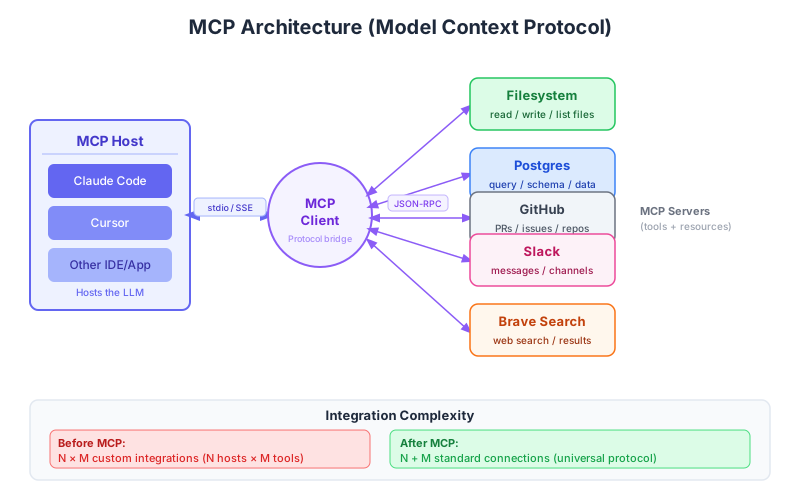
With five tools and five AI providers, you are maintaining 25 separate integrations. Add one tool, add five integration jobs. Add one provider, add five integration jobs. This is the N×M problem.
WITHOUT MCP — N x M Integrations
=================================

           Claude  GPT-4  Gemini  Llama  Mistral
           ------  -----  ------  -----  -------
Filesystem   [X]    [X]    [X]    [X]     [X]     <- 5 integrations
Postgres     [X]    [X]    [X]    [X]     [X]     <- 5 integrations
GitHub       [X]    [X]    [X]    [X]     [X]     <- 5 integrations
Slack        [X]    [X]    [X]    [X]     [X]     <- 5 integrations
Web Search   [X]    [X]    [X]    [X]     [X]     <- 5 integrations

Total: 5 tools × 5 providers = 25 custom integrations
Every new tool adds 5 jobs. Every new provider adds 5 jobs.


WITH MCP — N + M Integrations
==============================

  Tools           MCP Standard         AI Providers
  -----           ------------         ------------
  Filesystem ---->|           |<-----> Claude
  Postgres   ---->|    MCP    |<-----> GPT-4
  GitHub     ---->| Protocol  |<-----> Gemini
  Slack      ---->|           |<-----> Llama
  Web Search ---->|           |<-----> Mistral

Total: 5 server implementations + 5 client implementations = 10
Every new tool adds 1 job. Every new provider adds 1 job.
What MCP Is
Model Context Protocol (MCP) is an open standard protocol — think of it as the "USB port" for AI tools. It defines a single interface that:
- AI applications (hosts) use to discover and call tools
- Tool providers (servers) use to expose their capabilities
- Works over standard transports (local processes, HTTP)
- Is language and platform agnostic
History and Adoption
MCP was created by Anthropic and released as open source in November 2024. The motivation was exactly the integration problem described above — Anthropic needed a standard way to give Claude access to external context and tools without rebuilding integrations for every new capability.
Key adoption milestones:
| Date | Milestone |
|---|---|
| Nov 2024 | Anthropic releases MCP open source |
| Early 2025 | OpenAI, Google DeepMind, and Microsoft announce MCP support |
| Mid 2025 | MCP governance transferred to The Linux Foundation |
| 2025 | 1,000+ community MCP servers available |
| 2026 | 5,000+ community MCP servers; MCP in production at major enterprises |
MCP is now governed by The Linux Foundation and shaped by a growing community through Working Groups and Spec Enhancement Proposals (SEPs). It is no longer an Anthropic-only standard — it is the industry standard.
Part 2: How MCP Works — Architecture (25 min)
The Three Core Components
MCP defines three roles in every interaction:
MCP ARCHITECTURE
================

  +------------------------------------------+
  |         Application Host Process          |
  |                                           |
  |  +--------+   +--------+   +--------+    |
  |  | Client |   | Client |   | Client |    |
  |  |   1    |   |   2    |   |   3    |    |
  |  +---+----+   +---+----+   +---+----+    |
  |      |            |            |          |
  +------|------------|------------|----------+
         |            |            |
         |     Local Machine       |     Internet
         v            v            v
  +------------+ +----------+ +------------------+
  | MCP Server | |MCP Server| |   MCP Server     |
  | Files & Git| |Database  | |   External APIs  |
  +-----+------+ +----+-----+ +--------+---------+
        |              |               |
  +-----+------+ +----+-----+ +--------+---------+
  | Local Files| |Postgres  | |  REST APIs /     |
  | Git repos  | |Tables    | |  Web Services    |
  +------------+ +----------+ +------------------+
Host
The host is the AI application the user runs — Claude Code, Claude Desktop, a custom agent. The host:
- Creates and manages one or more MCP client instances
- Controls connection permissions and lifecycle
- Enforces security policies and consent requirements
- Coordinates the AI model and routes context
Client
Each client lives inside the host and manages exactly one server connection. The client:
- Establishes a stateful session with one MCP server
- Handles protocol negotiation and capability exchange
- Routes JSON-RPC messages in both directions
- Maintains isolation — clients cannot see each other
Server
Each MCP server exposes a specific domain of capabilities. A server:
- Provides Tools (functions the AI can call)
- Provides Resources (files, data, context the AI can read)
- Provides Prompts (reusable prompt templates)
- Runs as a local process or a remote service
- Has no access to the conversation history or other servers
Protocol Lifecycle
The protocol proceeds through well-defined phases:
PROTOCOL LIFECYCLE
==================

  Host          Client          Server
  ----          ------          ------
   |                |                |
   |-- Initialize ->|                |
   |                |-- initialize ->|  (send client capabilities)
   |                |<-- result -----|  (server returns its capabilities)
   |                |                |
   |         [ACTIVE SESSION]        |
   |                |                |
   |                |-- tools/list ->|  (discover available tools)
   |                |<-- result -----|  (list of tool schemas)
   |                |                |
   |-- User asks -->|                |
   |                |-- tools/call ->|  (invoke a specific tool)
   |                |<-- result -----|  (tool output returned)
   |<-- Response ---|                |
   |                |                |
   |                |-- Terminate -->|
   |                |                |
Step 1: Initialize
The client sends an initialize request carrying its capabilities and protocol version:
{
  "jsonrpc": "2.0",
  "id": 1,
  "method": "initialize",
  "params": {
    "protocolVersion": "2025-11-25",
    "capabilities": {
      "sampling": {},
      "roots": { "listChanged": true }
    },
    "clientInfo": {
      "name": "Claude Code",
      "version": "1.0.0"
    }
  }
}
The server responds with its own capabilities:
{
  "jsonrpc": "2.0",
  "id": 1,
  "result": {
    "protocolVersion": "2025-11-25",
    "capabilities": {
      "tools": {},
      "resources": { "subscribe": true, "listChanged": true }
    },
    "serverInfo": {
      "name": "postgres-mcp",
      "version": "2.1.0"
    }
  }
}
Step 2: List Tools
The client discovers what tools the server exposes:
// Request
{
  "jsonrpc": "2.0",
  "id": 2,
  "method": "tools/list"
}

// Response
{
  "jsonrpc": "2.0",
  "id": 2,
  "result": {
    "tools": [
      {
        "name": "query",
        "description": "Execute a read-only SQL query against the database",
        "inputSchema": {
          "type": "object",
          "properties": {
            "sql": {
              "type": "string",
              "description": "The SQL SELECT statement to execute"
            }
          },
          "required": ["sql"]
        }
      },
      {
        "name": "list_tables",
        "description": "List all tables in the database",
        "inputSchema": {
          "type": "object",
          "properties": {}
        }
      }
    ]
  }
}
Step 3: Call Tool
When the AI decides to use a tool, the client sends a tools/call request:
// Request
{
  "jsonrpc": "2.0",
  "id": 3,
  "method": "tools/call",
  "params": {
    "name": "query",
    "arguments": {
      "sql": "SELECT id, email, created_at FROM users ORDER BY created_at DESC LIMIT 10"
    }
  }
}

// Response
{
  "jsonrpc": "2.0",
  "id": 3,
  "result": {
    "content": [
      {
        "type": "text",
        "text": "id | email                | created_at\n---|----------------------|------------------\n 1 | alice@example.com    | 2026-03-15 09:00\n 2 | bob@example.com      | 2026-03-14 17:30\n..."
      }
    ],
    "isError": false
  }
}
Transport Layer
MCP messages travel over one of three transports:
| Transport | Use Case | How It Works |
|---|---|---|
| stdio | Local servers | Host spawns server as child process; communicates via stdin/stdout |
| Streamable HTTP | Remote servers | Standard HTTP with optional SSE for streaming; recommended for cloud |
| SSE (deprecated) | Remote servers | Server-Sent Events; being replaced by Streamable HTTP |
stdio is the simplest: the host runs npx some-mcp-server as a child process and pipes JSON-RPC over standard I/O. No network required.
Streamable HTTP is for remote servers. The client sends POST requests to an HTTP endpoint. The server can stream back multiple events via Server-Sent Events if the response is long.
Important for stdio servers: Never write to stdout in your server code — it corrupts the JSON-RPC stream. Always log to stderr.
Part 3: Built-in and Community MCP Servers (20 min)
Official Reference Servers
Anthropic maintains a set of reference MCP servers in the official repository at github.com/modelcontextprotocol/servers. These are production-ready implementations of the most common integrations:
| Server | Package | What It Provides |
|---|---|---|
| filesystem | @modelcontextprotocol/server-filesystem | Read/write local files in allowed directories, create/move/delete, search by pattern |
| postgres | @modelcontextprotocol/server-postgres | Execute read-only SQL queries, list tables and schemas, inspect column types |
| github | @modelcontextprotocol/server-github | Create/update issues and PRs, search code, manage branches, read file contents |
| slack | @modelcontextprotocol/server-slack | Post messages, read channel history, list channels, search messages |
| google-drive | @modelcontextprotocol/server-gdrive | List, read, and search Google Drive documents |
| brave-search | @modelcontextprotocol/server-brave-search | Web search via Brave Search API, returns structured results |
| puppeteer | @modelcontextprotocol/server-puppeteer | Browser automation: navigate, click, screenshot, extract content |
| memory | @modelcontextprotocol/server-memory | Persistent key-value memory that survives between conversations |
Popular Community Servers (2026)
Beyond the official servers, the community has built thousands of integrations. Notable examples:
| Server | What It Does |
|---|---|
| notion | Read/write Notion pages and databases |
| jira | Create/update Jira issues, query projects |
| figma | Read Figma designs and export assets |
| sentry | Query error events, traces, and releases |
| playwright | Advanced browser automation (successor to puppeteer) |
| sqlite | Query local SQLite databases |
| docker | Manage containers and images |
| kubernetes | Inspect pods, deployments, and services |
| linear | Manage Linear issues and projects |
| stripe | Query payments, customers, and subscriptions |
How to Discover MCP Servers
Three main sources:
- Official registry —
github.com/modelcontextprotocol/servers— the canonical list of reference servers - Anthropic MCP registry —
https://api.anthropic.com/mcp-registry/v0/servers— the registry Claude Code uses to list available servers - awesome-mcp-servers —
github.com/wong2/awesome-mcp-servers— community-curated list with 1,000+ entries - npmjs.com — search for packages prefixed with
@modelcontextprotocol/or keywordsmcp-server
Part 4: Live Demo — Connect to Postgres via MCP (25 min)
This section walks through connecting Claude Code to a live Postgres database using MCP. You will see the exact tool calls the agent makes.
Prerequisites
- PostgreSQL running locally (or a connection string to a remote instance)
- Claude Code installed (
npm install -g @anthropic-ai/claude-codeorpip install claude-code) - Node.js 18+ installed
Step 1: Install the Postgres MCP Server
The Postgres MCP server runs via npx — no permanent install needed:
# Test the server runs
npx @modelcontextprotocol/server-postgres --help

# Or install globally for faster startup
npm install -g @modelcontextprotocol/server-postgres
Step 2: Configure in Claude Code
Claude Code stores MCP server configuration at three scope levels:
| Scope | Config File | Shared? |
|---|---|---|
| user | ~/.claude.json | No — private to you, all projects |
| project | .mcp.json in repo root | Yes — committed to version control |
| local | ~/.claude.json under project path | No — private to you, this project |
Local scope overrides project, which overrides user.
Option A: CLI (recommended)
# Add postgres MCP server at project scope
claude mcp add --transport stdio \
  --env POSTGRES_CONNECTION_STRING=postgresql://user:pass@localhost:5432/mydb \
  postgres \
  -- npx -y @modelcontextprotocol/server-postgres

# Add at user scope (available in all projects)
claude mcp add --scope user --transport stdio \
  --env POSTGRES_CONNECTION_STRING=postgresql://user:pass@localhost:5432/mydb \
  postgres \
  -- npx -y @modelcontextprotocol/server-postgres

# List configured servers
claude mcp list

# Remove a server
claude mcp remove postgres
Option B: Manual JSON configuration
Edit ~/.claude.json (user scope) or .mcp.json in your project root (project scope):
{
  "mcpServers": {
    "postgres": {
      "command": "npx",
      "args": [
        "-y",
        "@modelcontextprotocol/server-postgres"
      ],
      "env": {
        "POSTGRES_CONNECTION_STRING": "postgresql://user:password@localhost:5432/mydb"
      }
    },
    "filesystem": {
      "command": "npx",
      "args": [
        "-y",
        "@modelcontextprotocol/server-filesystem",
        "/Users/yourname/projects",
        "/tmp"
      ]
    }
  }
}
For Claude Desktop (macOS), edit ~/Library/Application Support/Claude/claude_desktop_config.json:
{
  "mcpServers": {
    "postgres": {
      "command": "npx",
      "args": [
        "-y",
        "@modelcontextprotocol/server-postgres"
      ],
      "env": {
        "POSTGRES_CONNECTION_STRING": "postgresql://readonly_user:pass@localhost:5432/mydb"
      }
    }
  }
}
Save the file and restart Claude Desktop completely for changes to take effect.
Step 3: Agent Queries the Database in Real-Time
Once configured, Claude Code can interact with your database through natural language. Here is what happens under the hood when you ask:
"How many users signed up in the last 7 days, broken down by day?"
The agent executes this sequence of tool calls:
1. list_tables
   -> ["users", "orders", "products", "sessions", "events"]

2. query
   -> sql: "SELECT column_name, data_type FROM information_schema.columns
            WHERE table_name = 'users' ORDER BY ordinal_position"
   -> Returns: id (bigint), email (varchar), created_at (timestamptz), ...

3. query
   -> sql: "SELECT DATE(created_at) AS day, COUNT(*) AS signups
            FROM users
            WHERE created_at >= NOW() - INTERVAL '7 days'
            GROUP BY DATE(created_at)
            ORDER BY day"
   -> Returns:
      day        | signups
      -----------|--------
      2026-03-26 |      47
      2026-03-27 |      52
      ...
Claude then summarizes the results and can generate a chart, write a report, or take further action.
Security Considerations
Always use a read-only database user for MCP connections:
-- Create a read-only role for Claude
CREATE ROLE claude_readonly;
GRANT CONNECT ON DATABASE mydb TO claude_readonly;
GRANT USAGE ON SCHEMA public TO claude_readonly;
GRANT SELECT ON ALL TABLES IN SCHEMA public TO claude_readonly;
ALTER DEFAULT PRIVILEGES IN SCHEMA public
  GRANT SELECT ON TABLES TO claude_readonly;

-- Create the user
CREATE USER claude_mcp_user WITH PASSWORD 'strong-random-password';
GRANT claude_readonly TO claude_mcp_user;
Connection string best practices:
# Use environment variables — never hardcode credentials in config files
export POSTGRES_CONNECTION_STRING="postgresql://claude_mcp_user:pass@localhost:5432/mydb"

# Use .env files with your project (add to .gitignore)
echo "POSTGRES_CONNECTION_STRING=postgresql://..." >> .env
echo ".env" >> .gitignore
Additional security guidelines:
- Never grant INSERT, UPDATE, DELETE, or DDL permissions to the MCP user
- Consider restricting access to specific tables using column-level grants
- Rotate credentials regularly
- Monitor query logs for unusual activity
- Do not expose your Postgres MCP server over the public internet without authentication
Part 5: Building a Custom MCP Server (20 min)
When no existing MCP server covers your use case, you build your own. This is simpler than it sounds — the MCP SDK handles all protocol details.
Python: Weather MCP Server
This example builds a weather server using the US National Weather Service API (no API key required). It exposes two tools: get_alerts and get_forecast.
Setup:
# Install uv (fast Python package manager)
curl -LsSf https://astral.sh/uv/install.sh | sh

# Create the project
uv init weather-mcp
cd weather-mcp

# Create virtual environment and install dependencies
uv venv
source .venv/bin/activate
uv add "mcp[cli]" httpx

# Create the server file
touch weather.py
Complete server code (weather.py):
from typing import Any

import httpx
from mcp.server.fastmcp import FastMCP

# Initialize FastMCP server — the name appears in Claude's tool list
mcp = FastMCP("weather")

# National Weather Service API (US only, no API key needed)
NWS_API_BASE = "https://api.weather.gov"
USER_AGENT = "weather-mcp/1.0"


# ============================================================
# Helper functions
# ============================================================

async def make_nws_request(url: str) -> dict[str, Any] | None:
    """Make a request to the NWS API with proper error handling."""
    headers = {
        "User-Agent": USER_AGENT,
        "Accept": "application/geo+json",
    }
    async with httpx.AsyncClient() as client:
        try:
            response = await client.get(url, headers=headers, timeout=30.0)
            response.raise_for_status()
            return response.json()
        except Exception:
            return None


def format_alert(feature: dict) -> str:
    """Format an NWS alert into a human-readable string."""
    props = feature["properties"]
    return (
        f"Event: {props.get('event', 'Unknown')}\n"
        f"Area: {props.get('areaDesc', 'Unknown')}\n"
        f"Severity: {props.get('severity', 'Unknown')}\n"
        f"Description: {props.get('description', 'No description available')}\n"
        f"Instructions: {props.get('instruction', 'No specific instructions provided')}"
    )


# ============================================================
# Tool definitions
# FastMCP reads the type hints and docstring to build the schema
# ============================================================

@mcp.tool()
async def get_alerts(state: str) -> str:
    """Get active weather alerts for a US state.

    Args:
        state: Two-letter US state code (e.g. CA, NY, TX)
    """
    url = f"{NWS_API_BASE}/alerts/active/area/{state.upper()}"
    data = await make_nws_request(url)

    if not data or "features" not in data:
        return "Unable to fetch alerts or no alerts found."

    if not data["features"]:
        return f"No active alerts for {state.upper()}."

    alerts = [format_alert(feature) for feature in data["features"]]
    return "\n---\n".join(alerts)


@mcp.tool()
async def get_forecast(latitude: float, longitude: float) -> str:
    """Get a 5-period weather forecast for a specific location.

    Args:
        latitude: Latitude of the location (-90 to 90)
        longitude: Longitude of the location (-180 to 180)
    """
    # Step 1: Resolve coordinates to a forecast grid
    points_url = f"{NWS_API_BASE}/points/{latitude},{longitude}"
    points_data = await make_nws_request(points_url)

    if not points_data:
        return "Unable to fetch forecast data for this location."

    # Step 2: Get the actual forecast from the grid URL
    forecast_url = points_data["properties"]["forecast"]
    forecast_data = await make_nws_request(forecast_url)

    if not forecast_data:
        return "Unable to fetch detailed forecast."

    # Step 3: Format the next 5 forecast periods
    periods = forecast_data["properties"]["periods"]
    forecasts = []
    for period in periods[:5]:
        forecasts.append(
            f"{period['name']}:\n"
            f"  Temperature: {period['temperature']}°{period['temperatureUnit']}\n"
            f"  Wind: {period['windSpeed']} {period['windDirection']}\n"
            f"  Forecast: {period['detailedForecast']}"
        )

    return "\n---\n".join(forecasts)


# ============================================================
# Entry point
# ============================================================

def main():
    # stdio transport: host spawns this process and pipes JSON-RPC
    mcp.run(transport="stdio")


if __name__ == "__main__":
main()Test the server directly:
# Start the server — it waits for JSON-RPC on stdin
uv run weather.py

# In another terminal, use the MCP inspector
npx @modelcontextprotocol/inspector uv run weather.py
Register with Claude Code:
# Add to Claude Code (adjust path to your project)
claude mcp add --transport stdio weather \
  -- uv --directory /absolute/path/to/weather-mcp run weather.py

# Or add to .mcp.json manually:{
"mcpServers": {
"weather": {
"command": "uv",
"args": [
"--directory",
"/absolute/path/to/weather-mcp",
"run",
"weather.py"
]
}
}
}TypeScript: Weather MCP Server
The same server in TypeScript, using the official MCP SDK:
Setup:
mkdir weather-mcp-ts && cd weather-mcp-ts
npm init -y
npm install @modelcontextprotocol/sdk zod@3
npm install -D @types/node typescript
mkdir src && touch src/index.ts
package.json (add these fields):
{
  "type": "module",
  "bin": {
    "weather-mcp": "./build/index.js"
  },
  "scripts": {
    "build": "tsc && chmod 755 build/index.js",
    "start": "node build/index.js"
  },
  "files": ["build"]
}tsconfig.json:
{
  "compilerOptions": {
    "target": "ES2022",
    "module": "Node16",
    "moduleResolution": "Node16",
    "outDir": "./build",
    "rootDir": "./src",
    "strict": true,
    "esModuleInterop": true,
    "skipLibCheck": true,
    "forceConsistentCasingInFileNames": true
  },
  "include": ["src/**/*"],
  "exclude": ["node_modules"]
}
Complete server code (src/index.ts):
import { McpServer } from "@modelcontextprotocol/sdk/server/mcp.js";
import { StdioServerTransport } from "@modelcontextprotocol/sdk/server/stdio.js";
import { z } from "zod";

const NWS_API_BASE = "https://api.weather.gov";
const USER_AGENT = "weather-mcp/1.0";

// Create the MCP server instance
const server = new McpServer({
  name: "weather",
  version: "1.0.0",
});

// ============================================================
// Type definitions for NWS API responses
// ============================================================

interface AlertFeature {
  properties: {
    event?: string;
    areaDesc?: string;
    severity?: string;
    status?: string;
    headline?: string;
  };
}

interface AlertsResponse {
  features: AlertFeature[];
}

interface PointsResponse {
  properties: {
    forecast?: string;
  };
}

interface ForecastPeriod {
  name?: string;
  temperature?: number;
  temperatureUnit?: string;
  windSpeed?: string;
  windDirection?: string;
  shortForecast?: string;
  detailedForecast?: string;
}

interface ForecastResponse {
  properties: {
    periods: ForecastPeriod[];
  };
}

// ============================================================
// Helper functions
// ============================================================

async function makeNWSRequest<T>(url: string): Promise<T | null> {
  const headers = {
    "User-Agent": USER_AGENT,
    "Accept": "application/geo+json",
  };
  try {
    const response = await fetch(url, { headers });
    if (!response.ok) throw new Error(`HTTP ${response.status}`);
    return (await response.json()) as T;
  } catch (error) {
    // Use stderr — stdout is reserved for JSON-RPC
    console.error("NWS request failed:", error);
    return null;
  }
}

function formatAlert(feature: AlertFeature): string {
  const p = feature.properties;
  return [
    `Event: ${p.event ?? "Unknown"}`,
    `Area: ${p.areaDesc ?? "Unknown"}`,
    `Severity: ${p.severity ?? "Unknown"}`,
    `Status: ${p.status ?? "Unknown"}`,
    `Headline: ${p.headline ?? "No headline"}`,
  ].join("\n");
}

// ============================================================
// Tool registrations
// ============================================================

server.registerTool(
  "get_alerts",
  {
    description: "Get active weather alerts for a US state",
    inputSchema: {
      state: z
        .string()
        .length(2)
        .describe("Two-letter US state code (e.g. CA, NY, TX)"),
    },
  },
  async ({ state }) => {
    const stateCode = state.toUpperCase();
    const alertsUrl = `${NWS_API_BASE}/alerts?area=${stateCode}`;
    const data = await makeNWSRequest<AlertsResponse>(alertsUrl);

    if (!data) {
      return {
        content: [{ type: "text", text: "Failed to retrieve alerts data" }],
      };
    }

    const features = data.features ?? [];
    if (features.length === 0) {
      return {
        content: [{ type: "text", text: `No active alerts for ${stateCode}` }],
      };
    }

    const text = `Active alerts for ${stateCode}:\n\n${features.map(formatAlert).join("\n---\n")}`;
    return { content: [{ type: "text", text }] };
  }
);

server.registerTool(
  "get_forecast",
  {
    description: "Get a 5-period weather forecast for a specific location",
    inputSchema: {
      latitude: z
        .number()
        .min(-90)
        .max(90)
        .describe("Latitude of the location"),
      longitude: z
        .number()
        .min(-180)
        .max(180)
        .describe("Longitude of the location"),
    },
  },
  async ({ latitude, longitude }) => {
    const pointsUrl = `${NWS_API_BASE}/points/${latitude.toFixed(4)},${longitude.toFixed(4)}`;
    const pointsData = await makeNWSRequest<PointsResponse>(pointsUrl);

    if (!pointsData) {
      return {
        content: [{
          type: "text",
          text: `Failed to fetch grid point for ${latitude}, ${longitude}. Only US locations are supported.`,
        }],
      };
    }

    const forecastUrl = pointsData.properties?.forecast;
    if (!forecastUrl) {
      return {
        content: [{ type: "text", text: "Could not find forecast URL in grid data" }],
      };
    }

    const forecastData = await makeNWSRequest<ForecastResponse>(forecastUrl);
    if (!forecastData) {
      return {
        content: [{ type: "text", text: "Failed to retrieve forecast" }],
      };
    }

    const periods = (forecastData.properties?.periods ?? []).slice(0, 5);
    if (periods.length === 0) {
      return {
        content: [{ type: "text", text: "No forecast periods available" }],
      };
    }

    const formatted = periods.map((p) =>
      [
        `${p.name ?? "Unknown"}:`,
        `  Temperature: ${p.temperature ?? "?"}°${p.temperatureUnit ?? "F"}`,
        `  Wind: ${p.windSpeed ?? "?"} ${p.windDirection ?? ""}`,
        `  ${p.shortForecast ?? "No forecast"}`,
      ].join("\n")
    );

    const text = `Forecast for (${latitude}, ${longitude}):\n\n${formatted.join("\n---\n")}`;
    return { content: [{ type: "text", text }] };
  }
);

// ============================================================
// Entry point
// ============================================================

async function main() {
  const transport = new StdioServerTransport();
  await server.connect(transport);
  console.error("Weather MCP Server running on stdio");
}

main().catch((error) => {
  console.error("Fatal error:", error);
  process.exit(1);
});
Build and register:
# Build the TypeScript
npm run build

# Register with Claude Code
claude mcp add --transport stdio weather \
  -- node /absolute/path/to/weather-mcp-ts/build/index.js

# Or add to .mcp.json:{
"mcpServers": {
"weather": {
"command": "node",
"args": ["/absolute/path/to/weather-mcp-ts/build/index.js"]
}
}
}Testing Your MCP Server
Before registering with an AI host, test the server with the MCP Inspector — a visual debugging tool:
# Python server
npx @modelcontextprotocol/inspector uv run weather.py

# TypeScript server
npx @modelcontextprotocol/inspector node build/index.js
The Inspector opens a UI at http://localhost:5173 where you can:
- View all tools, resources, and prompts the server exposes
- Call tools directly with custom arguments
- Inspect raw JSON-RPC messages
- Verify error handling
Smoke test checklist before connecting to an AI:
[ ] Server starts without errors
[ ] tools/list returns expected tools with correct schemas
[ ] Tool calls return properly structured content objects
[ ] Error cases return { isError: true, content: [...] }
[ ] Logs write to stderr only (never stdout for stdio transport)
[ ] Server handles concurrent calls without crashing
Part 6: Hands-On Exercise (10 min)
Objective
Connect two MCP servers to Claude Code and execute a task that uses both.
Task: Connect Filesystem + Brave Search
Step 1: Get a Brave Search API key
Sign up for a free key at https://api.search.brave.com/ (free tier: 2,000 queries/month).
Step 2: Configure both servers
# Add filesystem server (allows access to your home/projects directory)
claude mcp add --transport stdio filesystem \
  -- npx -y @modelcontextprotocol/server-filesystem \
     /Users/$(whoami)/projects \
     /tmp

# Add Brave Search server
claude mcp add --transport stdio \
  --env BRAVE_API_KEY=your-api-key-here \
  brave-search \
  -- npx -y @modelcontextprotocol/server-brave-search
Verify both servers are listed:
claude mcp list
# Output:
# filesystem  stdio  npx -y @modelcontextprotocol/server-filesystem ...
# brave-search  stdio  npx -y @modelcontextprotocol/server-brave-search
Step 3: Execute a cross-server task
Start Claude Code and run this prompt:
Search the web for "Python async best practices 2026" and summarize
the top 3 results. Then create a file at /tmp/async-notes.md with
your summary formatted as a reference guide.
Watch Claude use both servers:
Tool call: brave_web_search
  -> query: "Python async best practices 2026"
  -> Returns: 3 articles with titles, URLs, and snippets

Tool call: write_file
  -> path: /tmp/async-notes.md
  -> content: "# Python Async Best Practices 2026\n\n..."
Step 4: Verify
# Confirm the file was created
cat /tmp/async-notes.md
Stretch Goal: Add Postgres
If you have a Postgres database available, add it as a third server and ask Claude to:
Look at the async-notes.md file, then check our database for any
existing entries in the `resources` table that relate to Python async
programming. Summarize what we already have versus what is new in
the notes file.
Checkpoint
Answer these questions to verify your understanding:
Conceptual:
- Explain in one sentence why MCP reduces integration work from N×M to N+M.
- What are the three MCP primitives that a server can expose?
- Why is it unsafe to use
print()orconsole.log()in a stdio MCP server? - What is the difference between MCP Host, Client, and Server?
Practical:
- What Claude Code CLI command adds a local stdio MCP server with an environment variable?
- A team wants to share MCP server configuration with all contributors. Which config file and scope should they use?
- You are connecting Claude to a production Postgres database. List three security measures you must take.
- What tool do you use to test an MCP server before connecting it to an AI host?
Code:
- Write a Python FastMCP tool definition for a function
get_stock_price(ticker: str) -> strthat returns the current price of a stock. Include the decorator, type hints, and docstring. - What JSON-RPC method does the client call to discover what tools a server provides? Write the request body.
Key Takeaways
MCP is the USB standard for AI tools. Before MCP, connecting tools to AI required custom integrations per provider. MCP defines a single protocol: build your server once, connect it to any MCP-compatible AI.
The architecture has three layers. The Host (your AI app) manages Clients, each Client maintains exactly one stateful connection to a Server. Servers expose Tools, Resources, and Prompts. Servers have no access to the conversation or other servers.
The protocol is JSON-RPC 2.0 with a defined lifecycle. Initialize (negotiate capabilities) → list tools → call tools → terminate. Every message follows the same structure.
Three transports, one protocol. stdio for local processes, Streamable HTTP for remote services. The protocol is identical regardless of transport.
5,000+ servers exist in 2026. Before building, check the official registry and awesome-mcp-servers. Most common integrations are already covered.
Building a server is straightforward. FastMCP (Python) and @modelcontextprotocol/sdk (TypeScript) handle all protocol details. You write tool functions; the SDK builds the schemas and handles the message loop.
Security is your responsibility. MCP gives the AI the ability to execute real actions. Always use minimum-privilege credentials, audit what each server can do, and never expose MCP servers to untrusted networks without authentication.
References
- Model Context Protocol — Official Documentation
- MCP Specification 2025-11-25
- MCP Architecture
- Build an MCP Server — Official Tutorial
- Connect Claude Code to MCP
- Official MCP Servers Repository
- Awesome MCP Servers (community list)
- Anthropic: Introducing the Model Context Protocol
Session A4.2 — AI-Powered Development (Developer Track)